The Instagram feed for Shopify
Show your Instagram posts on your store's home or product pages. On paid plans, tag products in your photos so shoppers can buy what they see.









How do I add an Instagram feed to Shopify?
Copy your SnapWidget embed code, then in Shopify go to Online Store, Themes, Customize and add a section. Use a Custom Liquid section in newer themes such as Dawn, or a Custom content section with a Custom HTML block in older themes. Paste the code and save. You need no Shopify app, and free widgets work.
Step by step: adding SnapWidget to a Shopify theme
-
1
Create your widget and copy the code
Create your widget in SnapWidget and click Get Widget. Copy the whole code.
-
2
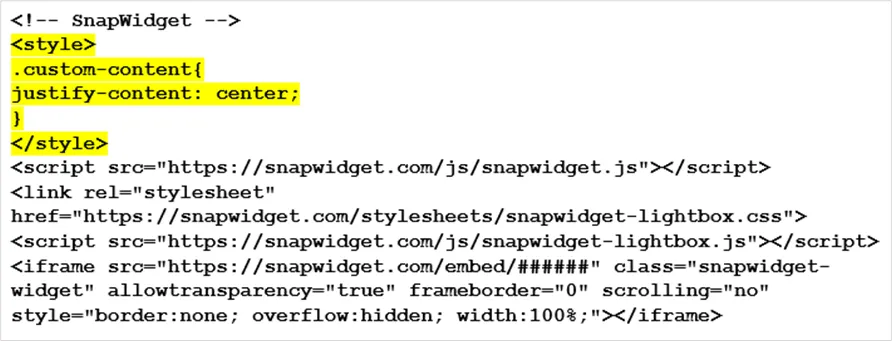
Add the centering CSS
Shopify puts custom content on the left. To center the widget, add the short style block from our guide just below the first line of the code.
-
3
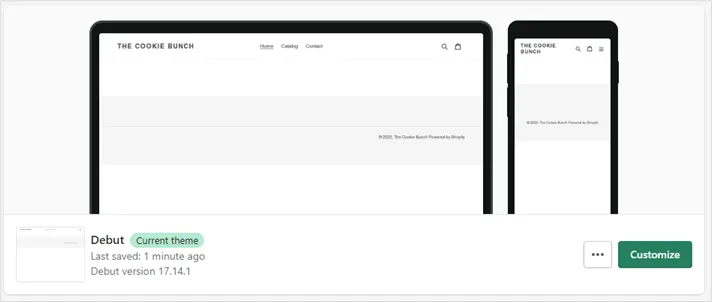
Open the theme editor
In your Shopify admin, select Online Store, then Themes. Click Customize on your theme.
-
4
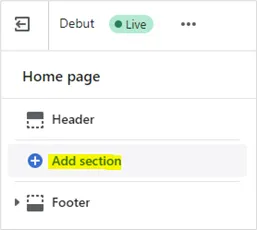
Add a Custom content section
In the theme editor, click Add section and choose Custom content. Give the section a heading.
-
5
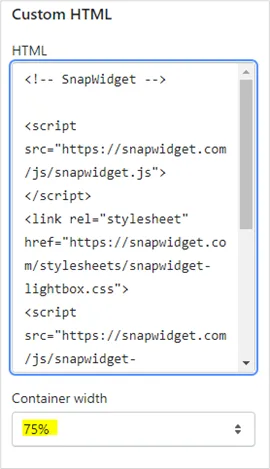
Add a Custom HTML block
In the Custom content editor, choose Add block, then Custom HTML. Paste the code in the HTML box and set Container width to 75% or 100%.
-
6
Check mobile and save
Select the monitor icon to check the Mobile view, and drag the section into place. Click Save.
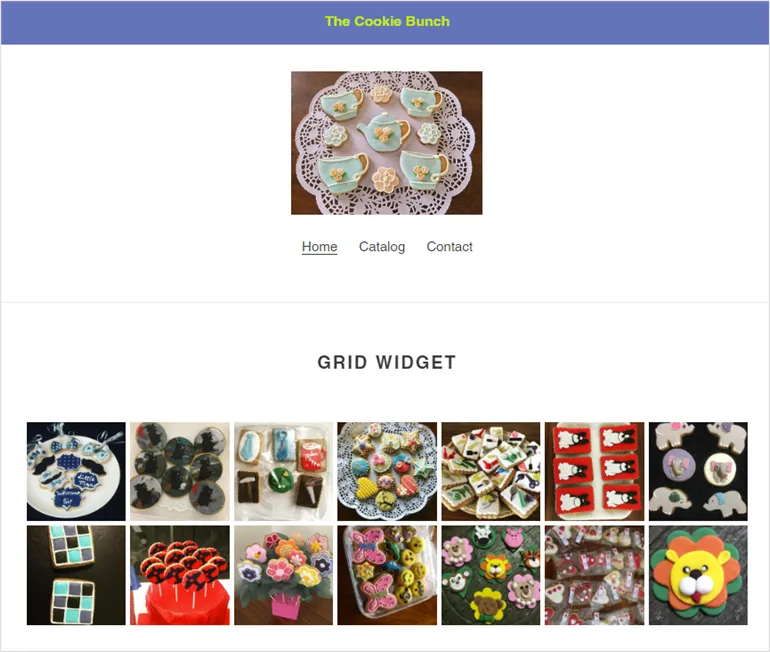
What SnapWidget adds to a Shopify store
- Paste it in the theme editor
- In newer themes such as Dawn, add a Custom Liquid section and paste the code. In older themes such as Debut, add a Custom content section with a Custom HTML block.
- Shoppable Images
- On paid plans, add product links to the items in your photos. Shoppers see a Shop This button and a lightbox that lists each product.
- Your store stays current
- Share to Instagram and the post shows in your store, with no theme edit. Widgets on paid plans refresh every 5 minutes.
- No Shopify app to install
- SnapWidget is an embed code, not an app, so there is nothing to add from the Shopify App Store.
Want every click? Our help center has the step-by-step install guide with screenshots.
Read the install guideLoved by 200,000+ websites
Don't just take our word for it. See all reviews →
Frequently asked questions
Create your widget in SnapWidget and click Get Widget to copy the code. In Shopify, go to Online Store, then Themes, then Customize, and add a section. Use a Custom Liquid section in newer themes, or a Custom content section with a Custom HTML block in older themes, then paste the code and save.
You do not need an app. SnapWidget is an embed code that you paste into a theme section, so there is nothing to install from the Shopify App Store. Free Instagram widgets work in Shopify, and paid plans from $8 a month add Shoppable Images and the lightbox.
Use Shoppable Images on a paid plan. Add a product link and description to the items in your photos, then set Photo Link to Shoppable (Lightbox). A click on a photo then opens a list of the products in it.
Shoppable Images, the lightbox and the feed layout need a paid plan, which starts at $8 a month with a 14-day free trial. Free Instagram widgets with the grid, board, slideshow, scrolling or popup layout work on Shopify too.
It works with any theme that lets you add HTML, because the widget is a standard embed code. Our install guide shows the steps in the Debut theme, and newer themes such as Dawn use a Custom Liquid section.
Yes. In Shopify, paste the code into a Custom Liquid section or a Custom HTML block. In Squarespace, paste it into an Embed block set to Code Snippet. Free Instagram widgets work on both.
Shopify puts custom HTML on the left by default. Our install guide shows the short piece of CSS to add to the code so the widget sits in the center.
Keep exploring
-
 Wix
Add an Embed HTML element with your widget's address.
Learn more
Wix
Add an Embed HTML element with your widget's address.
Learn more
-
 Squarespace
Paste the code into an Embed block as a Code Snippet.
Learn more
Squarespace
Paste the code into an Embed block as a Code Snippet.
Learn more
-
 Webflow
Add an Embed element and publish. Custom code needs a site plan.
Learn more
Webflow
Add an Embed element and publish. Custom code needs a site plan.
Learn more
-
 Google Sites
Wrap the code in a div, then use Insert, Embed, Embed code.
Learn more
Google Sites
Wrap the code in a div, then use Insert, Embed, Embed code.
Learn more