Instagram widget for Elementor
Add your Instagram feed to an Elementor page with the HTML widget. There is no Instagram add-on to install, and the feed keeps itself current.








How do I add an Instagram widget to Elementor?
Drag Elementor's HTML widget onto your page, paste your SnapWidget embed code in the HTML Code box and click Update. You need no Instagram add-on, and free Instagram widgets work. On free Elementor the widget shows, but the lightbox will not open, because free Elementor strips the stylesheet line from the code.
Step by step: using the Elementor HTML widget
-
1
Create your widget and copy the code
Create your widget in SnapWidget and click Install Widget, then Copy Code.
-
2
Open the page in Elementor
In your WordPress dashboard, select the page and click Edit. Click the Elementor option to open the page in Elementor.
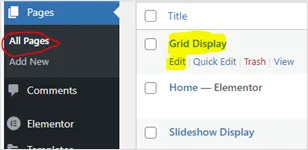
-
3
Drag in the HTML element
In the Elements list, scroll to HTML under General. Drag it onto the Drag widget here area.
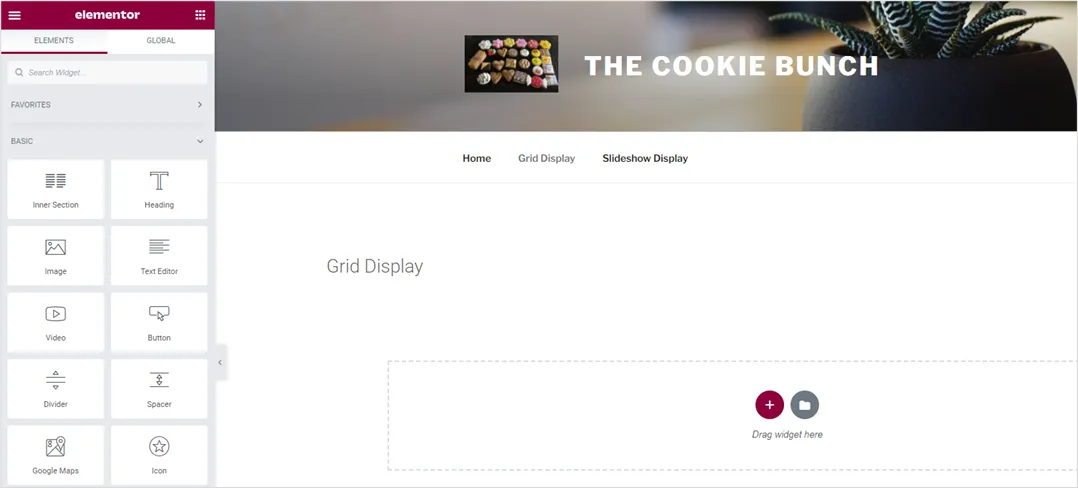
-
4
Paste the code
Right-click the right-hand edge of the thin blue area and choose Edit HTML. Paste the code in the HTML Code box.
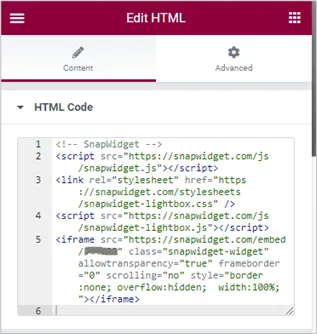
-
5
Click UPDATE
Elementor shows the widget as it will look live. Click UPDATE at the bottom of the page.

-
6
Center a smaller widget
To make the widget smaller and centered, wrap the iframe in a div with width: 50%; margin: auto. Leave the iframe width at 100%.

How it works inside Elementor
- Paste into the HTML widget
- Find HTML under General in the Elements panel, drag it onto your page and paste the code in the HTML Code box.
- No extra add-on
- You use the HTML widget that comes with Elementor, so there is no Instagram add-on to install or update.
- Lightbox needs paid Elementor
- Free Elementor strips the stylesheet line from the code, so a lightbox will not open. Our guide says you need the Essential plan or higher for it.
- Nothing to re-publish
- After you click Update once, new Instagram posts reach your Elementor page with no further edits.
Want every click? Our docs have the step-by-step install guide.
Read the install guideLoved by 200,000+ websites
Don't just take our word for it. See all reviews →
Frequently asked questions
Create your widget in SnapWidget and click Install Widget, then Copy Code. Open your page in Elementor, drag the HTML widget from the General section onto the page and paste the code. Click Update to publish.
Yes, the widget shows on free Elementor. Our help center notes that free Elementor strips the stylesheet line, so photo clicks that open a lightbox will not work. For that, it says you need a paid Elementor plan, Essential or higher.
Yes. Elementor must be installed and active in your WordPress dashboard. Then open the page in WordPress and click the option to edit it with Elementor.
Yes. Elementor is a visual editor, so it shows the widget as it will look on your live page. Click Update when you are happy with it.
Yes, but keep it wide enough to use. If the widget gets too small, visitors cannot click the photos and the share buttons do not show properly.
Keep exploring
-
 GoDaddy
Add an HTML section and paste the code in Custom Code.
Learn more
-
 Showit
Add an Embed Code element on the desktop and mobile canvas.
Learn more
-
 Weebly
Drag the Embed Code element into a section and paste the code.
Learn more
-
 Framer
Insert the Embed element, set it to HTML and paste the code.
Learn more