Add an Instagram feed to Framer
Drop Framer's Embed element into a section, set it to HTML and paste your widget code. Then set its size for desktop, tablet and phone.








How do I add an Instagram feed to Framer?
Click Insert, choose Utility and drag the Embed element onto a section. Set it to HTML in the property sidebar and paste your SnapWidget embed code. Then set the size for Desktop, Tablet and Phone, and publish. You need no Framer plugin, and free Instagram widgets work.
Step by step: placing the Framer Embed element
-
1
Create your widget and copy the code
Create your widget in SnapWidget and click Install Widget. Click Copy Code to copy every line of the code.
-
2
Pick the page and section
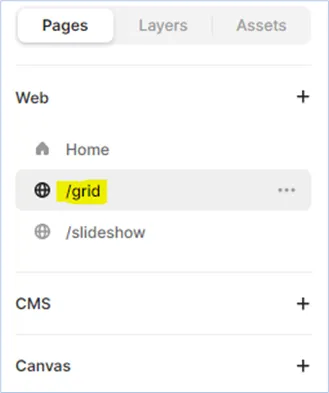
Open your project in Framer and select the page under Pages, in the Web list. Select the section for the widget, or click + Add Section to make one.
-
3
Insert the Embed element
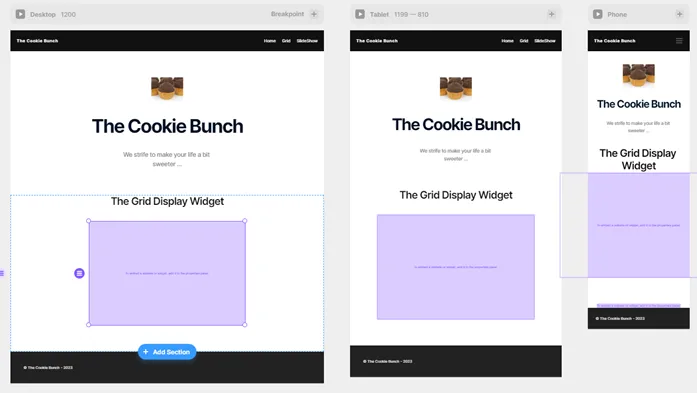
Click Insert on the top toolbar, select Utility under Elements and drag the Embed element onto the section. Framer adds it to the Desktop, Tablet and Phone views.
-
4
Paste the code as HTML
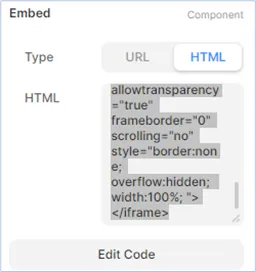
In the property sidebar on the right, select HTML in the Embed component. Paste the code in the HTML box.
-
5
Set the size
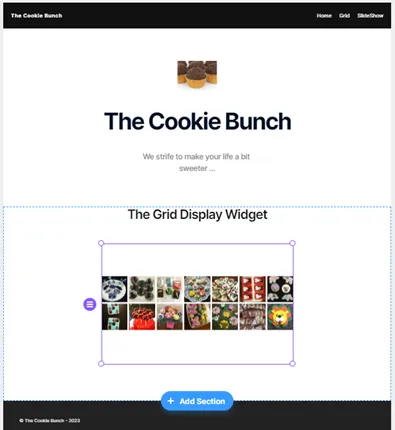
The widget fills the width of the Embed element. Change the width under Size to make it smaller or bigger, for each screen size.
-
6
Preview and publish
Click Preview at the top of the page to check the widget. Then publish your site.
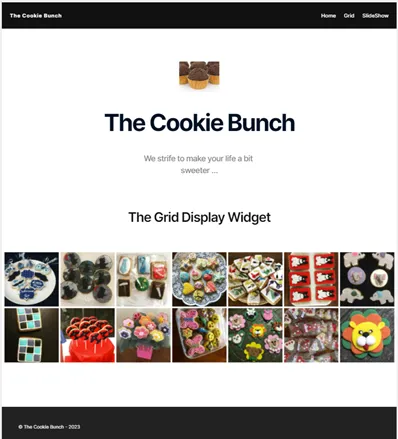
How the widget works in Framer
- The Embed element
- Click Insert, choose Utility under Elements and drag Embed onto a section. Set it to HTML and paste the code.
- Desktop, Tablet and Phone
- Framer adds the element to all three screen sizes. You can set Position and Size for each one.
- Width from the Size setting
- The widget fills the Embed element. Change the width under Size, and the grid follows with no code edit.
- Web or desktop app
- The steps are the same in Framer on the web and in the Framer app you download.
Want every click? Our docs have the step-by-step install guide.
Read the install guideLoved by 200,000+ websites
Don't just take our word for it. See all reviews →
Frequently asked questions
Use Framer's Embed element. Select a section, click Insert, choose Utility under Elements and drag Embed onto the section. In the property sidebar, select HTML and paste your SnapWidget code. Click Preview to see the widget.
Change the width under Size in the property sidebar. The widget fills the Embed element, so a narrower element gives a narrower grid. You can also change width:100% in the code to a smaller value.
Yes. With Position set to Relative, the element follows the section layout. Set Position to Absolute to place it with margins, starting from the center of the section.
The responsive slideshow keeps its own size and sits on the left. Our install guide shows how to put a non-responsive slideshow in two div tags so you can set its width. Below 60%, the share buttons do not display properly.
No. The Embed element comes with Framer, and the widget code loads from our servers. There is nothing else to install.
Yes. Free Instagram widgets with the grid, slideshow, scrolling, board or popup layout work in the Embed element. Paid plans start at $8 a month with a 14-day free trial and add the feed layout and the lightbox.
Keep exploring
-
 Kajabi
Add a Custom Code section, or paste the code into a blog post.
Learn more
Kajabi
Add a Custom Code section, or paste the code into a blog post.
Learn more
-
 Blogger
Add an HTML/JavaScript gadget, or paste the code in HTML view.
Learn more
Blogger
Add an HTML/JavaScript gadget, or paste the code in HTML view.
Learn more
-
 WordPress
Paste the code into a Custom HTML block. No plugin needed.
Learn more
WordPress
Paste the code into a Custom HTML block. No plugin needed.
Learn more
-
 Shopify
Add a Custom Liquid or Custom HTML section to your theme. No app needed.
Learn more
Shopify
Add a Custom Liquid or Custom HTML section to your theme. No app needed.
Learn more