Stream your photos to WordPress
Show your Instagram feed on your WordPress site without a plugin. Paste the embed code into a Custom HTML block, a sidebar widget or the Classic editor.








How do I add an Instagram feed to WordPress without a plugin?
Paste your SnapWidget embed code into a Custom HTML block in the block editor, or into the Text tab of the Classic editor, then update the page. You need no plugin, and free Instagram widgets work. The feed then updates by itself, every 15 minutes on free widgets and every 5 minutes on paid ones.
Step by step: pasting the code into a WordPress page
-
1
Create your widget and copy the code
Create your widget in SnapWidget and check it in the preview. Click Install Widget, then Copy Code.
-
2
Open the page in the editor
In your WordPress dashboard, select Pages. Hover over the page title and click Edit, not Quick Edit.
-
3
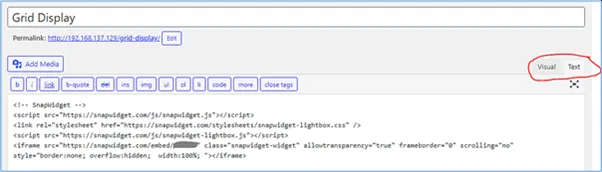
Paste the code in the Text tab
Make sure the Text tab is selected and paste the code. A switch to the Visual tab removes the stylesheet line from the code.
-
4
Update the page
Click Update and view the page. To make the widget smaller, change width:100% in the iframe line to a value such as 75%.

-
5
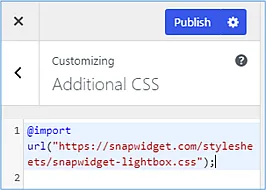
Keep the lightbox working
If your widget uses the lightbox, go to Appearance, then Customize, then Additional CSS. Add @import url("https://snapwidget.com/stylesheets/snapwidget-lightbox.css"); and click Publish. Do this again if you change your theme.
Why use SnapWidget on WordPress?
- Works with your theme
- The widget sits inside your page content, so it works with classic and block themes. Our guide shows it in Make, Twenty Ten and Twenty Twenty-One.
- One less plugin
- You paste an embed code, so there is no feed plugin to install, update or keep compatible with your other plugins.
- Block editor or Classic editor
- In the block editor, add a Custom HTML block. In the Classic editor, paste the code in the Text tab, not the Visual tab.
- Sidebars and footers
- Add a Custom HTML widget to a sidebar or footer area. A slideshow or scrolling strip suits a narrow area better than a wide grid.
Want every click? Our docs have the step-by-step install guide.
Read the install guideLoved by 200,000+ websites
Don't just take our word for it. See all reviews →
Frequently asked questions
Create your widget in SnapWidget and click Install Widget, then Copy Code. In WordPress, edit the page and add a Custom HTML block, or paste the code in the Text tab of the Classic editor. Update the page and the widget appears.
In the Classic editor, a switch from the Text tab to the Visual tab can remove the line that loads the lightbox stylesheet. Paste the code in the Text tab and publish from there. Our install guide also shows how to add the stylesheet under Additional CSS.
You do not need one. SnapWidget works through an embed code that you paste into a Custom HTML block, so there is nothing to install, update or keep compatible with your other plugins. Free Instagram widgets work, and paid plans from $8 a month add the feed layout and the lightbox.
Smash Balloon is a WordPress plugin, and SnapWidget is an embed code that works on WordPress and other site builders. Our free widgets have no view limit and need nothing installed on your site. See our Smash Balloon comparison for prices and features side by side.
Our steps are for self-hosted WordPress from wordpress.org. Our help center notes that WordPress.com does not allow iframes on pages or in sidebars, so the widget shows as a link there.
Yes. Paste the embed code into an HTML widget in Elementor or a Code module in Divi. For Elementor, read our Elementor page first, because free Elementor removes the stylesheet that the lightbox needs.
Comparing tools?
Keep exploring
-
 Shopify
Add a Custom Liquid or Custom HTML section to your theme. No app needed.
Learn more
Shopify
Add a Custom Liquid or Custom HTML section to your theme. No app needed.
Learn more
-
 Wix
Paste your widget code into an Embed HTML element.
Learn more
Wix
Paste your widget code into an Embed HTML element.
Learn more
-
 Squarespace
Paste the code into an Embed block as a Code Snippet.
Learn more
Squarespace
Paste the code into an Embed block as a Code Snippet.
Learn more
-
 Webflow
Add an Embed element and publish. Custom code needs a site plan.
Learn more
Webflow
Add an Embed element and publish. Custom code needs a site plan.
Learn more