Embed an Instagram feed on Squarespace
Add an Embed block to your page, switch it to Code Snippet and paste your widget code. Then size the block on the Squarespace grid.






How do I add an Instagram feed to Squarespace?
Add an Embed block to your page, click Edit, select Code Snippet and paste your SnapWidget embed code under Embed data. Save the page, then drag the block handles to size it on the Squarespace grid. Free Instagram widgets work in the block, and paid plans from $8 a month add the feed layout and the lightbox.
In this video
Step by step: adding an Embed block on Squarespace
-
1
Create your widget and copy the code
Create your widget in SnapWidget and check it in the preview. Click Install Widget, then Copy Code to copy the whole code.
-
2
Open the page in Edit mode
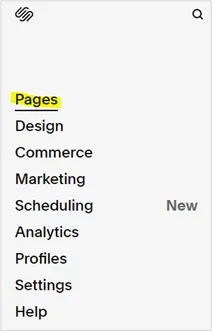
On your Squarespace dashboard, select your site and click WEBSITE. Select Pages in the left sidebar, choose the page and click Edit.
-
3
Add an Embed block
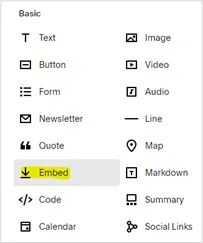
Click + ADD BLOCK in the section where the widget should go. Under Basic, select Embed.
-
4
Paste the code as a Code Snippet
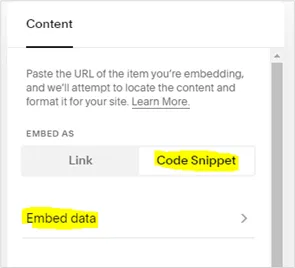
Click Edit on the new block. In the Content panel, select Code Snippet, open Embed data and paste the code.
-
5
Size the block
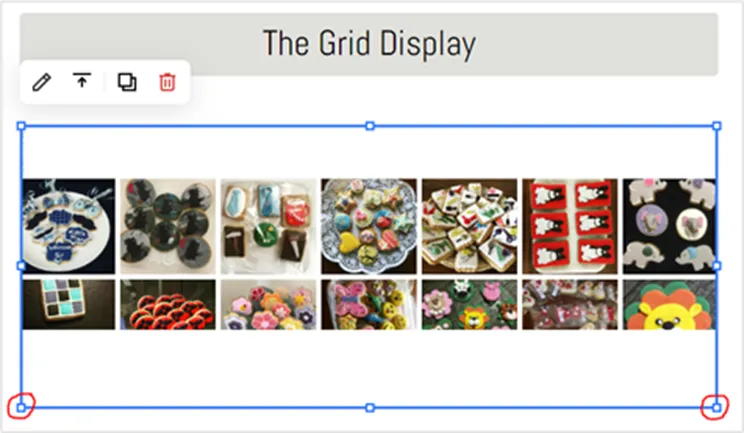
The preview shows the widget small at first. Click the embed area and drag the handles to size it, but keep it big enough for visitors to click a photo.
-
6
Save and check the page
Click Save under DONE at the top left. After the save, the widget displays at its full size.
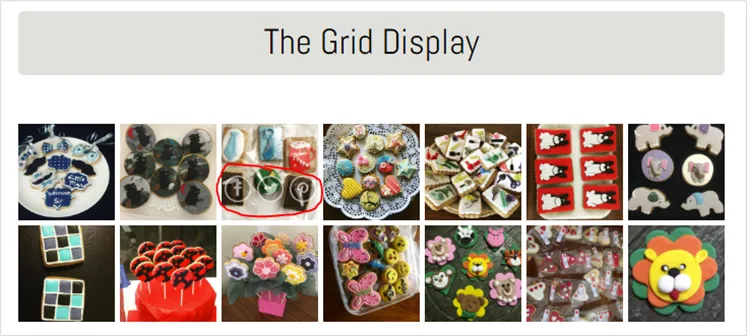
How the feed fits a Squarespace page
- Embed block, Code Snippet
- Add an Embed block from Basic, click Edit, select Code Snippet and paste the code under Embed data.
- Placed on the Squarespace grid
- A new Embed block takes 8 by 8 grid blocks. Drag the handles to size it and move it anywhere in the section.
- Grid or slideshow
- A grid needs more room than a slideshow. Paste the code first, then size the block to suit the layout you picked.
- One block, no template edits
- The code sits in one block on one page. You never edit your Squarespace template, and new Instagram posts appear on their own.
Want every click? Our docs have the step-by-step install guide.
Read the install guideLoved by 200,000+ websites
Don't just take our word for it. See all reviews →
Frequently asked questions
Use an Embed block. Open the page, click Edit, then + ADD BLOCK, and choose Embed under Basic. Click Edit on the block, select Code Snippet and paste your SnapWidget code under Embed data. Click Save under DONE.
The editor shows a small preview at first. Click the embed area and drag the handles to make the block bigger. After you save the page, the widget displays properly.
Either way works. You can add the Embed block to a section you already have, or add a new section for it. Our guide puts the block under a text block in an existing section.
Yes, on paid plans. Set Photo Link to Lightbox in SnapWidget, and a click on a photo opens it full size on your page. On a free widget, a click opens the photo on a SnapWidget page.
No. The widget loads your new posts by itself. Free widgets refresh every 15 minutes and paid widgets every 5 minutes.
Yes, free Instagram widgets work in an Embed block. They use the grid, slideshow, scrolling, board or popup layout. Paid plans add the feed layout and the lightbox, from $8 a month with a 14-day free trial.
Keep exploring
-
 Webflow
Add an Embed element and publish. Custom code needs a site plan.
Learn more
Webflow
Add an Embed element and publish. Custom code needs a site plan.
Learn more
-
 Google Sites
Wrap the code in a div, then use Insert, Embed, Embed code.
Learn more
Google Sites
Wrap the code in a div, then use Insert, Embed, Embed code.
Learn more
-
 Elementor
Drag in the HTML widget and paste the code. No add-on needed.
Learn more
Elementor
Drag in the HTML widget and paste the code. No add-on needed.
Learn more
-
 GoDaddy
Add an HTML section and paste the code in Custom Code.
Learn more
GoDaddy
Add an HTML section and paste the code in Custom Code.
Learn more