Add Instagram to your GoDaddy website
Add an HTML section in GoDaddy Website Builder and paste your widget code. Set the height and centering in the section settings, not in the code.








How do I add an Instagram feed to my GoDaddy website?
In GoDaddy Website Builder, click Add Section, choose HTML under Files & Web and paste your SnapWidget embed code in the Custom Code box. Set Forced Height if the area looks small, turn on Center align, then publish. Free Instagram widgets work, and new posts appear without another edit.
Step by step: using an HTML section in GoDaddy Website Builder
-
1
Create your widget and copy the code
Pick a layout in SnapWidget, connect your Instagram account and click Install Widget. Click Copy Code to copy the code.
-
2
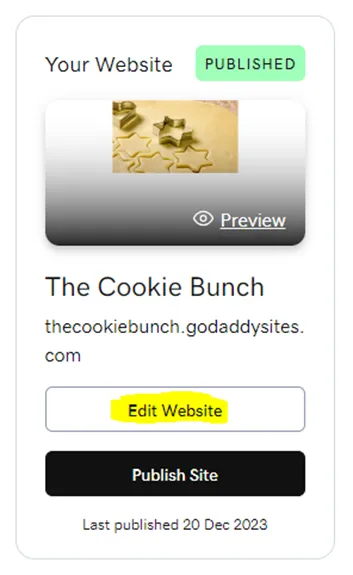
Open your site in the editor
In GoDaddy Website Builder, select your website on the dashboard and click Edit Website. Select the page for the widget.
-
3
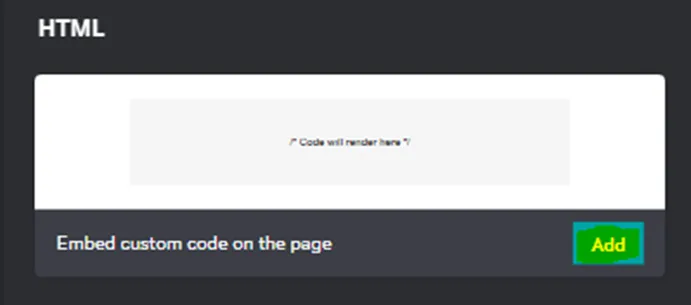
Add an HTML section
Click Add Section and select HTML under Files & Web. Click Add to put the section on the page.
-
4
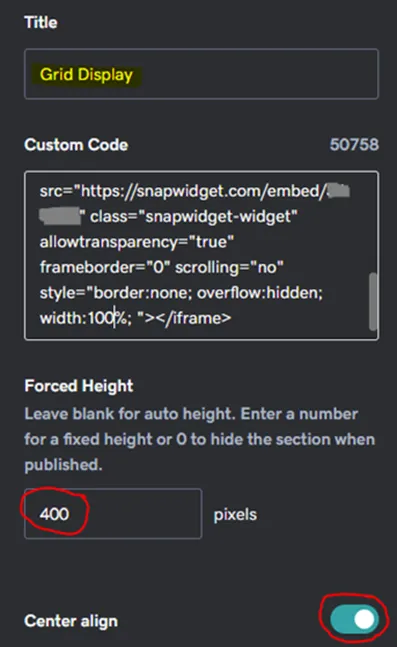
Paste the code in Custom Code
Type a title in the Title box and paste the code in the Custom Code box. Set Forced Height if the area looks too small, and turn on Center align.
-
5
Preview on desktop and mobile
Click Preview to see the page as visitors will. Click the mobile icon to check the widget on a phone screen.

-
6
Publish your site
Click Publish and choose the domain for your site. Then click View Site to see the widget live.

How does the widget work in a GoDaddy HTML section?
- One HTML section
- Click Add Section, pick HTML under Files & Web and paste the code in the Custom Code box.
- Height and centering in the editor
- Enter a Forced Height if the widget area looks too small, and turn on Center align. The code stays as it is.
- Desktop and mobile preview
- Click Preview, then the mobile icon, to check the responsive widget on a phone screen before you publish.
- Publish once
- After you publish, new Instagram posts reach your GoDaddy site with no further edits.
Want every click? Our docs have the step-by-step install guide.
Read the install guideLoved by 200,000+ websites
Don't just take our word for it. See all reviews →
Frequently asked questions
Use an HTML section in GoDaddy Website Builder. Click Edit Website, select the page and click Add Section. Choose HTML under Files & Web, click Add and paste your SnapWidget code in the Custom Code box. Then click Publish.
No. The warning tells you that the HTML section is for people who are confident with HTML, CSS and JavaScript. Paste our code as it is and the widget works.
Enter a height in pixels in the Forced Height box of the HTML section. Our guide uses 400. Leave the box blank for auto height.
Change width:100% in the iframe line of the code to a smaller value, such as 75%. Keep it wide enough, or visitors cannot click a photo and the share buttons do not show properly.
Yes, the GoDaddy steps are the same. A responsive slideshow sits on the left at its own size. To set its width and center it, our install guide puts a non-responsive slideshow in two div tags.
Yes. You can put a free Instagram widget with the grid, slideshow, scrolling, board or popup layout in a GoDaddy HTML section. Paid plans add the feed layout, the lightbox and Shoppable Images, from $8 a month.
Keep exploring
-
 Showit
Add an Embed Code element on the desktop and mobile canvas.
Learn more
Showit
Add an Embed Code element on the desktop and mobile canvas.
Learn more
-
 Weebly
Drag the Embed Code element into a section and paste the code.
Learn more
Weebly
Drag the Embed Code element into a section and paste the code.
Learn more
-
 Framer
Insert the Embed element, set it to HTML and paste the code.
Learn more
Framer
Insert the Embed element, set it to HTML and paste the code.
Learn more
-
 Kajabi
Add a Custom Code section, or paste the code into a blog post.
Learn more
Kajabi
Add a Custom Code section, or paste the code into a blog post.
Learn more