Put your Instagram feed on Weebly
Drag a Section and an Embed Code element onto your Weebly page, center it and paste your widget code. The editor shows the widget as it will look live.






How do I add an Instagram feed to Weebly?
Drag a Section onto your Weebly page, drag the Embed Code element into it, set Position to Center and paste your SnapWidget code under Edit Custom HTML. Then click Publish. The Weebly editor shows the widget as it will look live. Free Instagram widgets work and refresh every 15 minutes.
Step by step: using the Weebly Embed Code element
-
1
Create your widget and copy the code
Create your widget in SnapWidget. When the preview looks right, click Install Widget, then Copy Code.
-
2
Open the page in Build mode
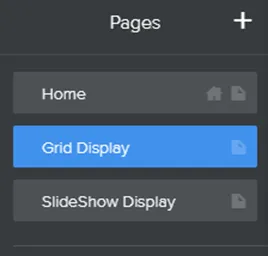
On your Weebly dashboard, select Edit Website. Go to Pages, select the page, then click Build.
-
3
Drag in a Section
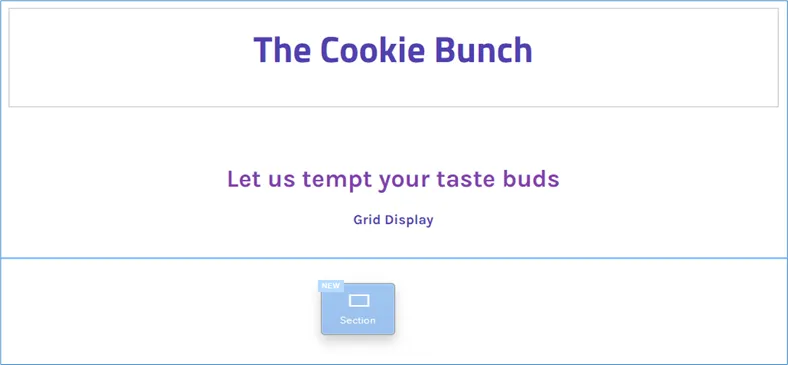
Under Structure, drag a Section onto the page where the widget should go. Click outside the Choose Section Layout box to ignore it.
-
4
Add the Embed Code element
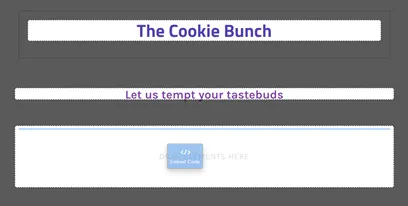
Under BASIC, drag Embed Code onto the new section.
-
5
Center it and paste the code
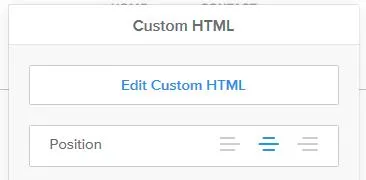
Click the text that says Click to set custom HTML. Set Position to Center, click Edit Custom HTML and paste the code over anything in the box.
-
6
Check the preview and publish
Click outside the box, and the editor shows an exact preview of the widget. Click Publish.

How does the widget work in the Weebly editor?
- Drag and drop
- Drag a Section from Structure and the Embed Code element from BASIC. There are no theme files to open.
- Center it with one setting
- Set Position to Center in the Custom HTML settings, and the widget sits in the middle of the section.
- An exact preview
- Click outside the HTML box, and the Weebly editor shows the widget as it will look on your live site.
- Size it per page
- Change the width in the code you pasted, for example to 75%. The change applies only to that copy of the widget.
Want every click? Our docs have the step-by-step install guide.
Read the install guideLoved by 200,000+ websites
Don't just take our word for it. See all reviews →
Frequently asked questions
Use the Embed Code element. Select Edit Website, open the page and click Build. Drag a Section onto the page and drag Embed Code into it. Click the element, set Position to Center, click Edit Custom HTML, paste your code and click Publish.
Ignore it. Click outside the area on the page to close it, then drag the Embed Code element into the new section.
Yes. Our help center says the Weebly editor shows an exact preview of how the widget will look on your live site. Click outside the HTML box to see it.
Use a non-responsive slideshow inside two div tags, as our install guide shows. The responsive slideshow fills the width and sits on the left. Keep the wrapper at 35% or wider so the share buttons display properly.
No. The widget loads your new posts by itself. Free widgets refresh every 15 minutes and paid widgets every 5 minutes.
Yes. Free Instagram widgets with the grid, slideshow, scrolling, board or popup layout work in the Embed Code element. On a free widget, a click on a photo opens a SnapWidget page. The lightbox and the feed layout come with paid plans, from $8 a month.
Keep exploring
-
 Framer
Insert the Embed element, set it to HTML and paste the code.
Learn more
Framer
Insert the Embed element, set it to HTML and paste the code.
Learn more
-
 Kajabi
Add a Custom Code section, or paste the code into a blog post.
Learn more
Kajabi
Add a Custom Code section, or paste the code into a blog post.
Learn more
-
 Blogger
Add an HTML/JavaScript gadget, or paste the code in HTML view.
Learn more
Blogger
Add an HTML/JavaScript gadget, or paste the code in HTML view.
Learn more
-
 WordPress
Paste the code into a Custom HTML block. No plugin needed.
Learn more
WordPress
Paste the code into a Custom HTML block. No plugin needed.
Learn more