Add your Instagram feed to Google Sites
Paste your widget code into an embed box on the new Google Sites. Wrap it in a div first, so visitors can click your photos.








How do I add an Instagram feed to Google Sites?
Wrap your SnapWidget embed code in <div> and </div>, then in Google Sites select Insert, Embed, choose Embed code and paste it. Stretch the embed box until every row shows, and click Publish. Without the div, visitors cannot click your photos. Free Instagram widgets work on the new Google Sites.
In this video
Step by step: embedding the code on Google Sites
-
1
Create your widget and copy the code
Create your widget in SnapWidget and turn on the Responsive switch. Click Install Widget, then click Copy Code to copy all the lines of the code.
-
2
Wrap the code in a div
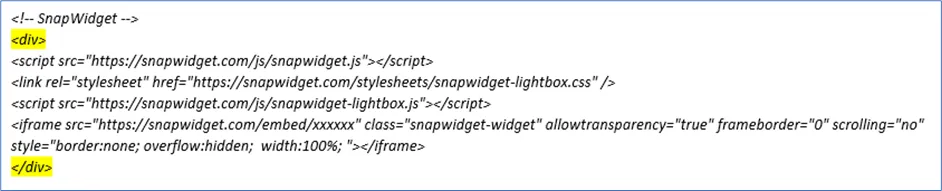
Put <div> on the line before the code and </div> on the line after it. Without the div, Google Sites shows your photos but visitors cannot click them.
-
3
Open the page and choose Embed
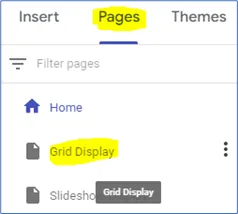
Open your site in Google Sites and select the page. On the INSERT tab, select Embed.
-
4
Paste the code and insert it
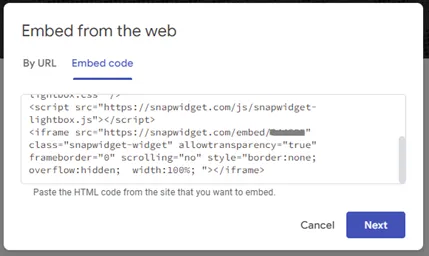
In Embed from the web, choose Embed code, paste the code and click Next. Check the preview, then click Insert.
-
5
Stretch the embed box
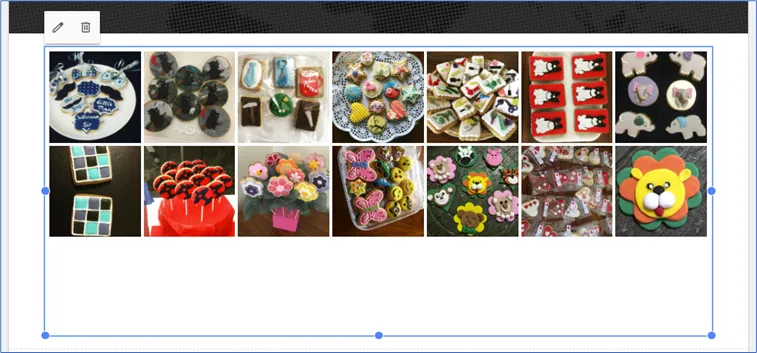
Drag the side handles to full width and the bottom handle down until every row shows with no scrollbar. Google Sites shows the code in its own frame, so a lightbox can only be as big as this box.
-
6
Publish
Click PUBLISH. Publish again after every change to the code, and repeat these steps on each page that needs the feed.
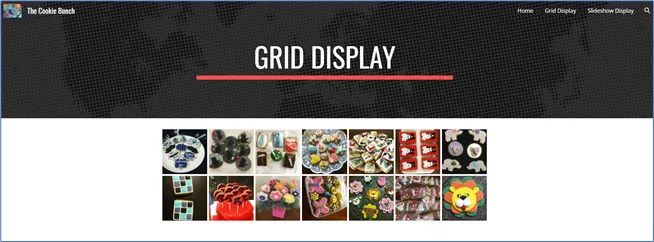
What Google Sites needs from the code
Google Sites shows custom HTML inside a frame of its own. Our install guide covers each detail.
- A div around the code
- Put <div> before the code and </div> after it. Without the div, visitors cannot click your photos.
- A box that fits the widget
- Stretch the embed box to full width and drag the bottom down until every row shows. A lightbox can only fill this box.
- Works with every theme
- The steps are the same in every Google Sites theme. Only the colors and background around the widget change.
- Publish after each code change
- Click Publish after you edit the code. New Instagram posts reach the widget without a publish.
Want every click? Our docs have the step-by-step install guide.
Read the install guideLoved by 200,000+ websites
Don't just take our word for it. See all reviews →
Frequently asked questions
Use Embed on the Insert tab. Copy your SnapWidget code and wrap it in <div> and </div>. In Google Sites, open the page, select Insert, then Embed, choose Embed code and paste the code. Click Next, then Insert, and publish.
The code is not inside a div. Our help center says Google Sites needs the whole code wrapped in <div> and </div>, or the photos are not clickable. Add the div and publish again.
The embed box is shorter than the widget. Open the page in edit mode, click the widget and drag the bottom handle down until all photos show. Remove the scrollbar on a slideshow too, or it does not display properly on your live site.
Google Sites shows custom HTML in its own frame, and the lightbox can only fill that frame. Make the embed box wider and taller until the lightbox fits. The lightbox comes with paid plans; on a free widget, a click opens the photo on a SnapWidget page.
Our guide covers the new Google Sites only. On the new Google Sites, the steps do not depend on the theme you use.
Yes. Google Sites needs the code on each page where the feed should show. The steps are the same on every page and sub-page.
Keep exploring
-
 Elementor
Drag in the HTML widget and paste the code. No add-on needed.
Learn more
Elementor
Drag in the HTML widget and paste the code. No add-on needed.
Learn more
-
 GoDaddy
Add an HTML section and paste the code in Custom Code.
Learn more
GoDaddy
Add an HTML section and paste the code in Custom Code.
Learn more
-
 Showit
Add an Embed Code element on the desktop and mobile canvas.
Learn more
Showit
Add an Embed Code element on the desktop and mobile canvas.
Learn more
-
 Weebly
Drag the Embed Code element into a section and paste the code.
Learn more
Weebly
Drag the Embed Code element into a section and paste the code.
Learn more