Table of contents
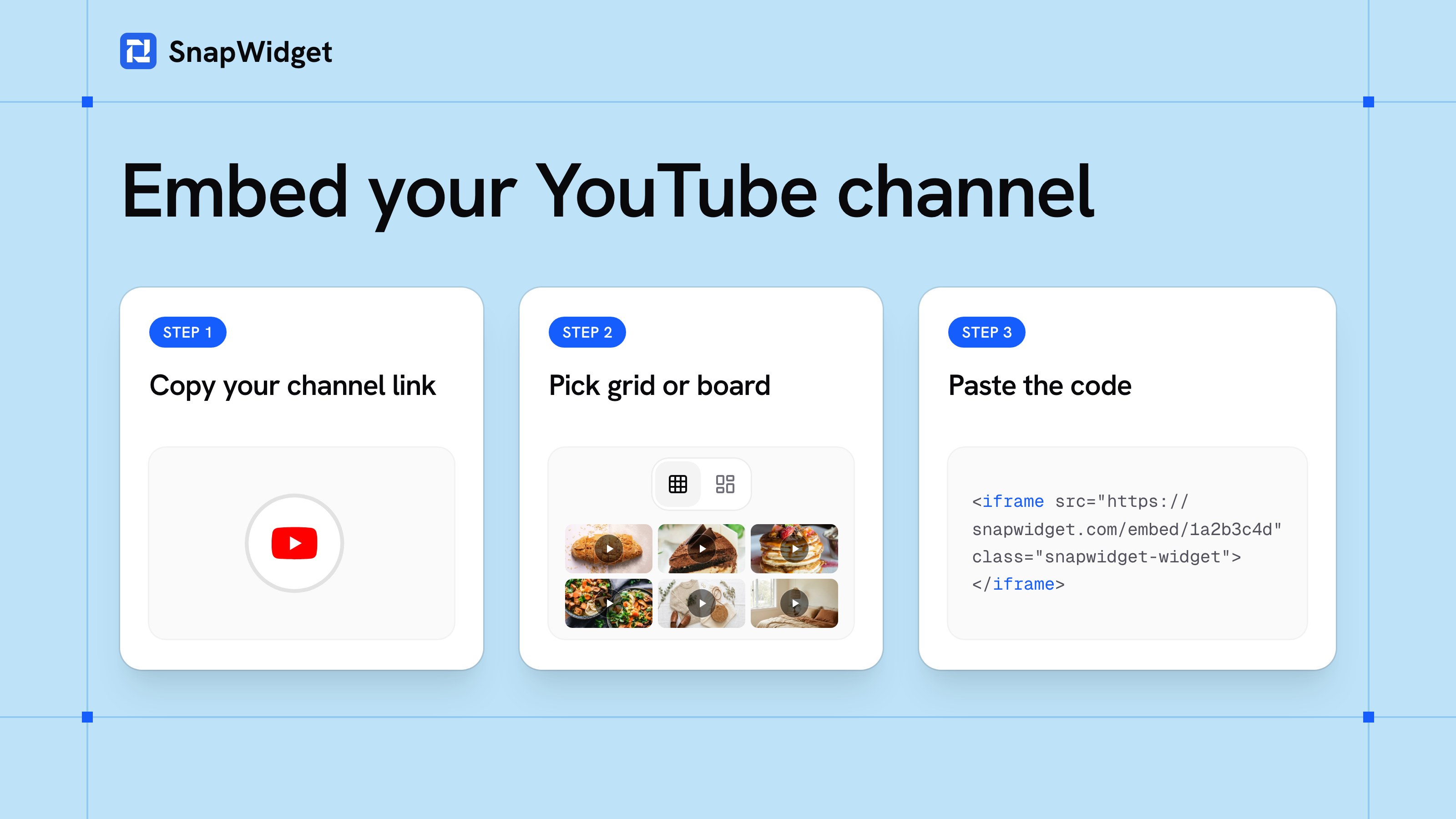
YouTube has no embed code for a whole channel. Its Share > Embed button gives you the code for one video or one playlist. To show your channel's latest videos on your website, you have two ways:
- Embed your channel's uploads playlist. It is free. Your website gets one YouTube player that starts with your newest video, and new uploads join the playlist by themselves.
- Add a YouTube widget. Your latest videos show as a grid of thumbnails, or as a board with each video's description. New uploads appear by themselves. It needs a SnapWidget paid plan, from $8 a month, with a 14-day free trial.
We tested both ways on our own channel, SnapWidget on YouTube.
Which way should you use?
Use the uploads playlist when one player is enough, for example on a home page that shows your newest video. It costs nothing, and you need no account other than YouTube.
Use a YouTube widget when you want visitors to see several videos at once and pick one, for example on a videos page, a portfolio or a course page. You choose the number of columns and rows, and the widget fits the width of your page on phones too.
Method 1: Embed your channel's uploads playlist (free)
Every YouTube channel has an uploads playlist, and YouTube adds each new video to it. When you embed that playlist, your website plays your newest upload first.
- Find your channel ID. On YouTube, select your profile picture, then Settings, then Advanced settings. You must be signed in as the channel's owner. A channel ID starts with
UC. - Change the first two letters from
UCtoUU. The result is the ID of your uploads playlist. For our channel,UC165wn44taS2-fwnJD8njXQbecomesUU165wn44taS2-fwnJD8njXQ. - Put the new ID at the end of this link:
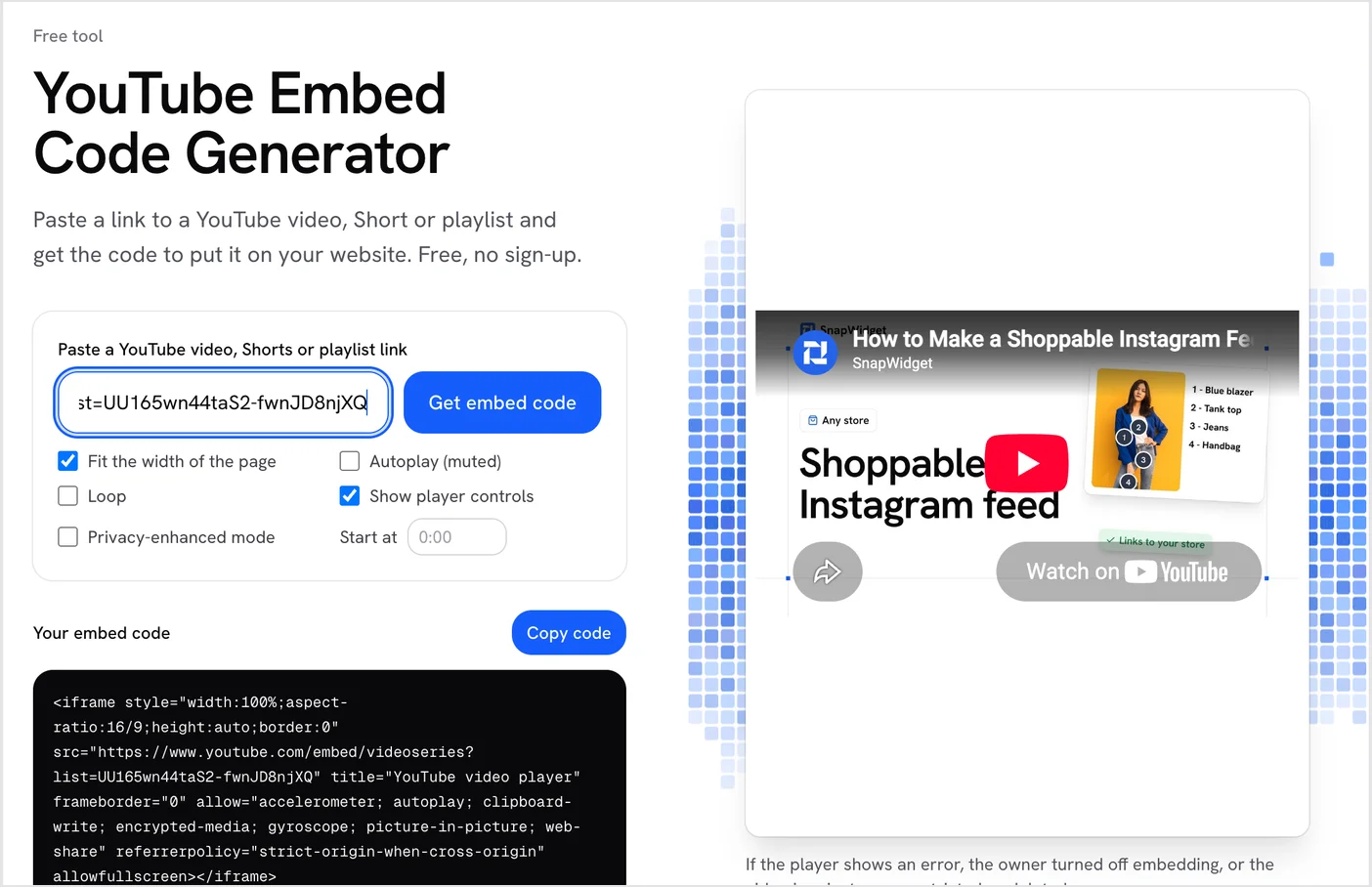
https://www.youtube.com/playlist?list= - Paste the link into our free YouTube Embed Code Generator and click Get embed code. Keep Fit the width of the page on, so the player fills its column on phones too.
- Click Copy code and paste the code where your website builder accepts HTML.
You can also write the code yourself. Replace the ID after list= with your own:
<iframe
  style="width:100%;aspect-ratio:16/9;height:auto;border:0"
  src="https://www.youtube.com/embed/videoseries?list=UU165wn44taS2-fwnJD8njXQ"
  title="YouTube video player"
  allow="accelerometer; autoplay; clipboard-write; encrypted-media; gyroscope; picture-in-picture; web-share"
  referrerpolicy="strict-origin-when-cross-origin"
  allowfullscreen></iframe>
In our test, the player opened with our newest video. The player shows one video at a time, so visitors do not see your other videos at a glance.
Method 2: Show your videos in a grid with SnapWidget
A SnapWidget YouTube widget shows your latest videos as a grid of thumbnails, or as a board with each video's description under its thumbnail. When you upload a video, the widget adds it. YouTube widgets refresh every 5 minutes.
You do not sign in to YouTube. The widget only needs the link to your channel.
- Sign up for SnapWidget and start the 14-day free trial of a paid plan. YouTube widgets are part of the Lite, Pro and Developer plans.
- Open the widget list, click the YouTube tab, then YouTube Grid or YouTube Board.
- Paste your channel link into Channel Link. Your handle link works, for example
https://www.youtube.com/@SnapWidgetApp. The preview shows your latest videos. - On the Basic tab, set the thumbnail size and the number of columns and rows. Keep Responsive on, so the widget fits the width of the page.
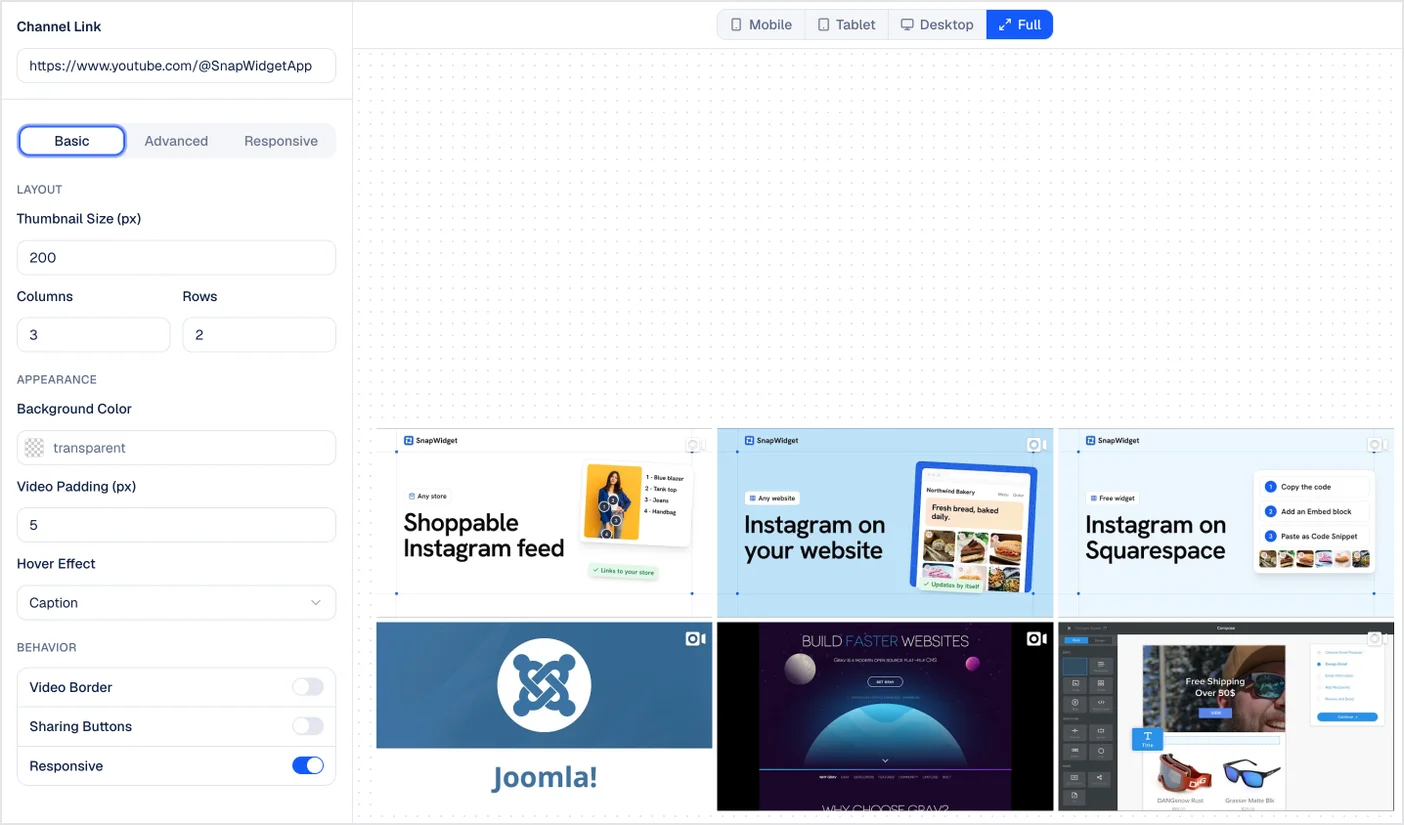
- Click Install Widget, then Copy Code.
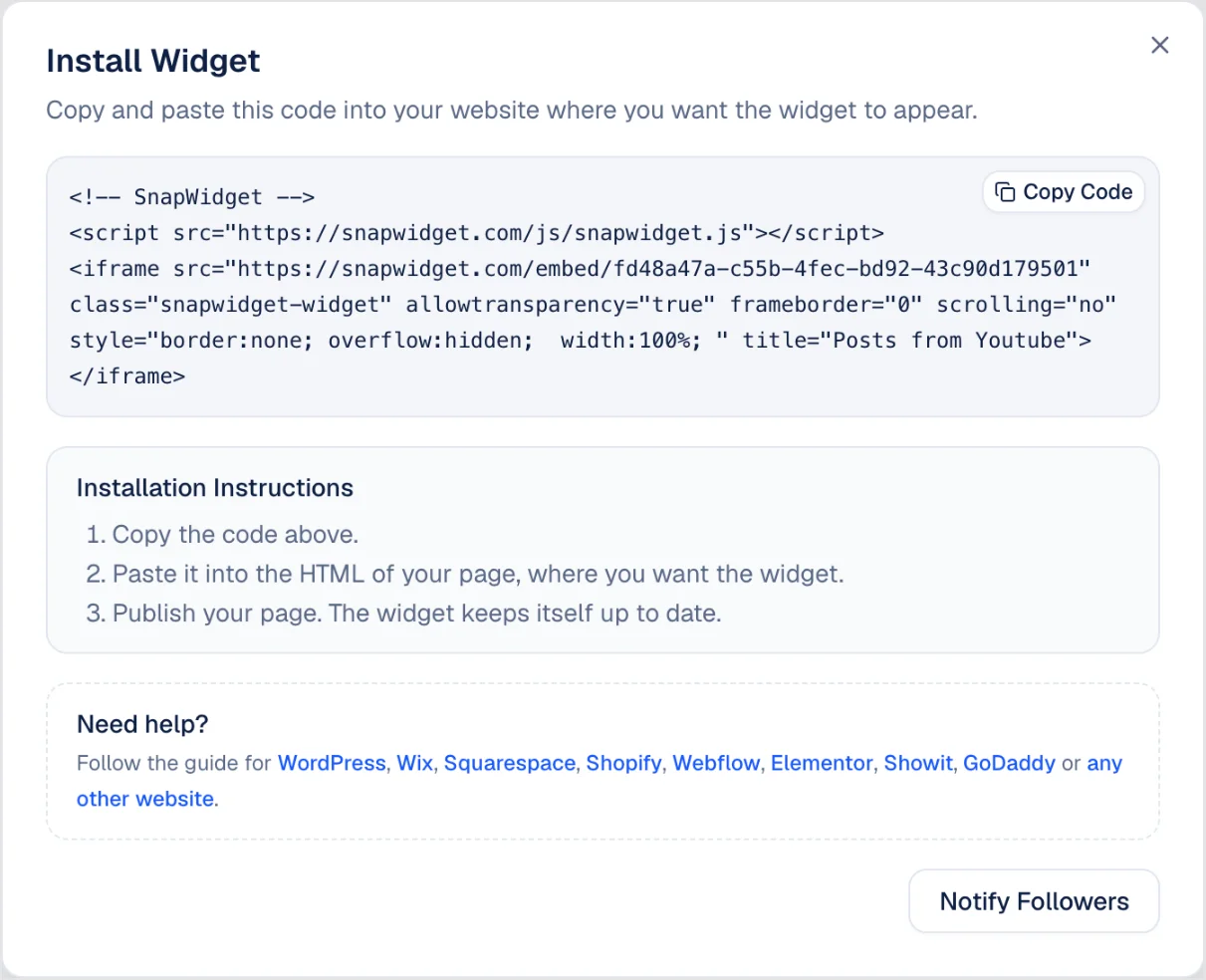
- Paste the code where your website builder accepts HTML, and publish the page. Our install guides show where that is in WordPress, Wix and Squarespace.
Here is the widget on a test page, on a computer and on a phone:
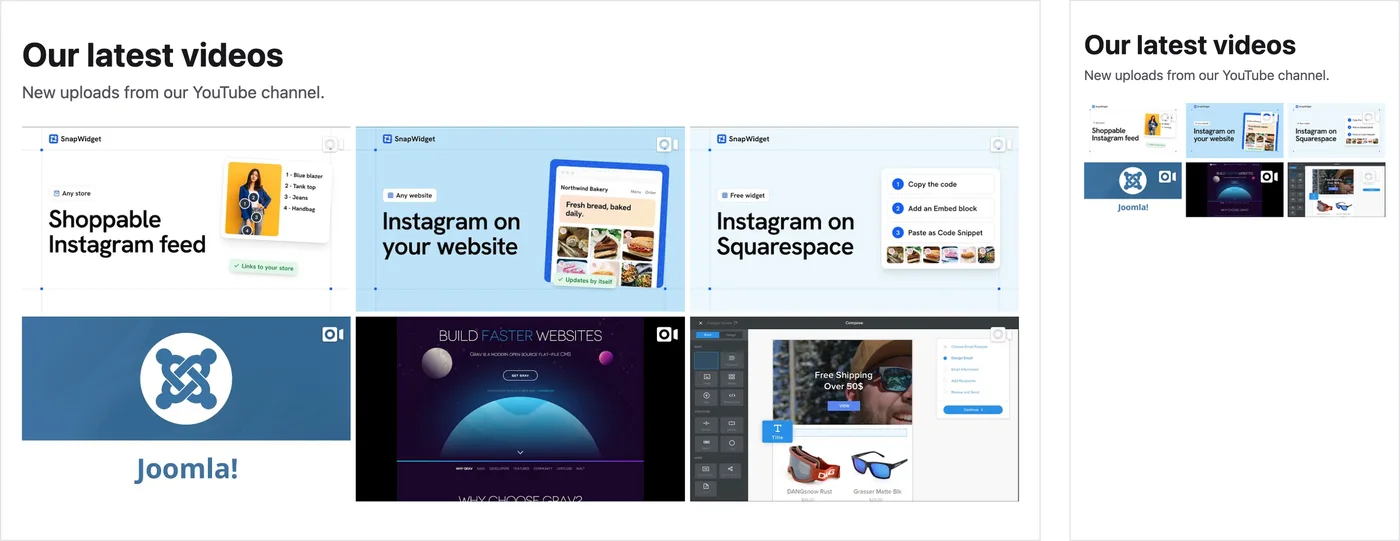
To play videos on your page instead of on YouTube, set Photo Link to Lightbox on the Advanced tab. See the YouTube feed widget page for the grid and board layouts.
If something does not show
The YouTube player shows an error. The owner turned off embedding for the video, or the video is private, age-restricted or deleted. Age-restricted videos cannot play on most other websites.
The player shows "Error 153" (Video player configuration error). Your page sends no HTTP Referer, and YouTube's terms require one. Keep the referrerpolicy part of the code, and check that your site does not set its referrer policy to no-referrer.
The widget shows no videos. Check the link in Channel Link. Links in the forms youtube.com/@name, youtube.com/channel/ followed by the channel ID, and youtube.com/user/ followed by the name all work.
Frequently asked questions
Can I embed my whole YouTube channel on my website?
Not with YouTube's own Share button, which embeds one video or one playlist. Embed your channel's uploads playlist instead, or use a YouTube widget that shows your latest videos in a grid.
Is there a free way to show my latest YouTube videos?
Yes. Embed your uploads playlist (method 1). The code is free, and our YouTube Embed Code Generator makes it for you without a sign-up.
Do new videos appear on my website by themselves?
Yes, with both ways. YouTube adds each upload to your uploads playlist, and a SnapWidget YouTube widget refreshes every 5 minutes.
Do I need to sign in to YouTube?
Only to find your channel ID in YouTube's settings. The embed code and the SnapWidget widget need no YouTube sign-in.
How much does a SnapWidget YouTube widget cost?
YouTube widgets are part of the paid plans: Lite at $8 a month (1 Pro widget), Pro at $14 a month (20 Pro widgets) and Developer at $99 a month (250 Pro widgets). Each plan starts with a 14-day free trial, and yearly billing gives you 2 months free. See pricing for all features.