Table of contents
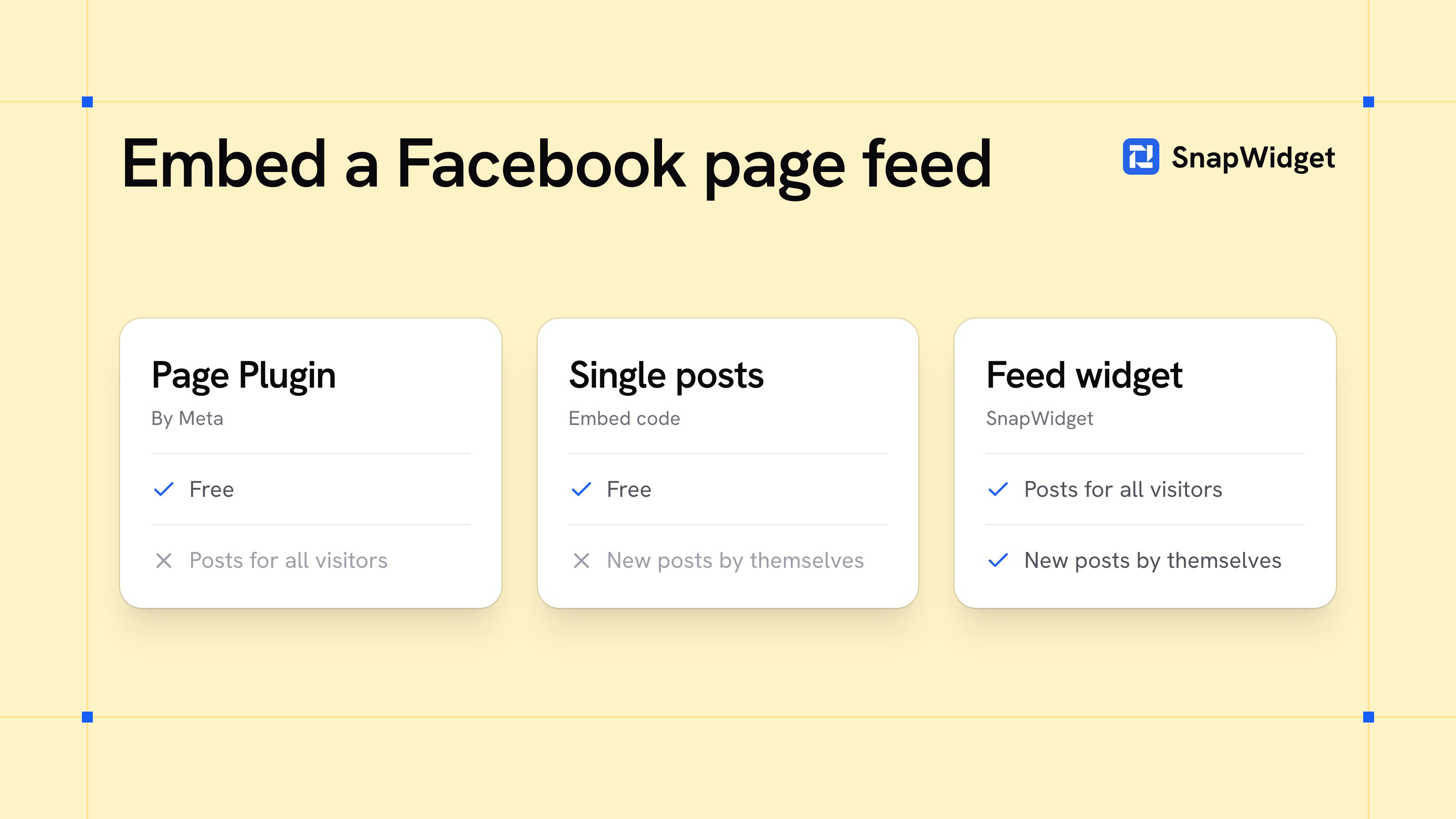
To show your Facebook page's posts on your website, you have three ways:
- Meta's Page Plugin. It is free and comes from Meta. In our test, visitors who were not signed in to Facebook saw only the page name, the number of followers and a Follow Page button. They saw no posts.
- Embed single posts. It is free, and each post shows for every visitor. But you add each new post by hand.
- Add a feed widget. Your latest posts show for every visitor, and new posts appear by themselves. A free SnapWidget Facebook widget shows the photos from your page. The feed layout, with text posts and videos, needs a paid plan with a 14-day free trial.
We tested all three ways on 1 November 2026.
Which way should you use?
Use a feed widget when you want visitors to see your latest posts without a Facebook account, and you do not want to update your website each time you post.
Embed single posts when you want to show one or two posts that stay the same, for example an event announcement or a post with many comments.
Use the Page Plugin when a Follow button for your page is enough. Do not rely on it to show your posts.
Method 1: Meta's Page Plugin (free)
Meta's Page Plugin puts a box for your Facebook page on your website. It has a header with your page name, cover photo and a Follow button. Meta says its Timeline tab shows the most recent posts of your page.
- Copy the code below.
- Replace
https://www.facebook.com/yourpagewith the address of your Facebook page. - Keep
data-tabs="timeline". Setdata-width(180 to 500) anddata-height(70 or more). Keepdata-adapt-container-width="true", so the box fits narrow columns. - Paste the code where your website builder accepts HTML with a script.
<div id="fb-root"></div>
<script async defer crossorigin="anonymous"
  src="https://connect.facebook.net/en_US/sdk.js#xfbml=1&version=v26.0"></script>
<div class="fb-page"
  data-href="https://www.facebook.com/yourpage"
  data-tabs="timeline"
  data-width="500"
  data-height="600"
  data-adapt-container-width="true"></div>
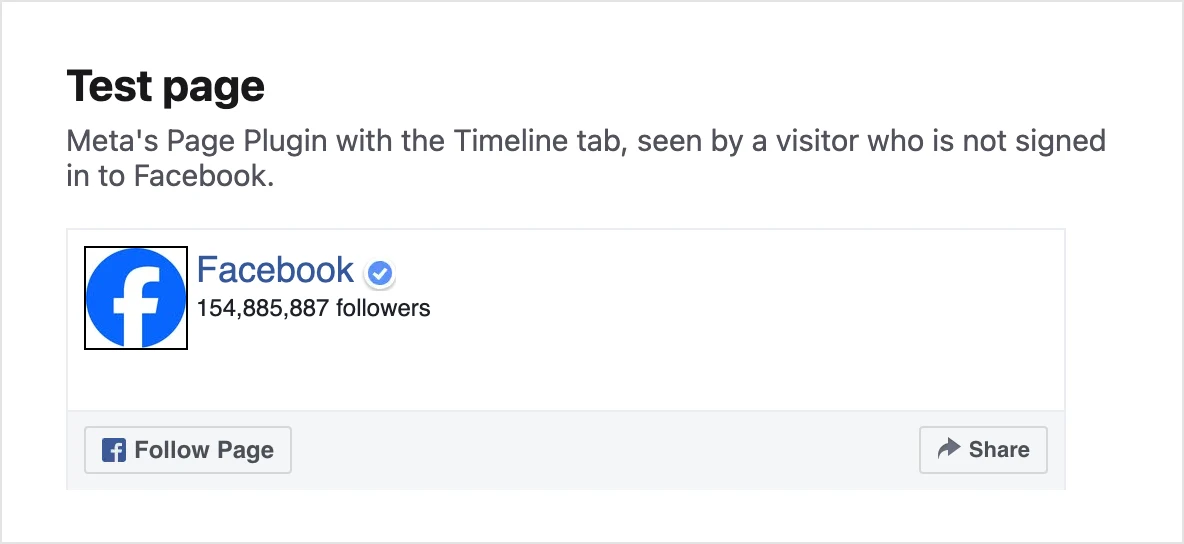
What our test showed. We put the plugin on a test page and opened it in a browser that was not signed in to Facebook. The plugin showed the page name, the number of followers, Follow Page and Share. It showed no posts and no cover photo, with the Timeline tab on. We got the same result with three large public pages, and with Meta's iframe code. We did not test what a visitor who is signed in to Facebook sees.
The Page Plugin also does not work for pages that Facebook restricts by country or age, or for pages with privacy restrictions.
Method 2: Embed single posts (free)
Facebook lets you embed public posts and videos from pages and profiles. In our test, an embedded post showed its text and its Like, Comment and Share buttons to a visitor who was not signed in.
- On Facebook, open the post and copy its address from the address bar. The post must be public.
- Paste the link into our free Facebook Embed Code Generator. Choose whether to Include post text, then click Get embed code.
- Click Copy code and paste the code where your website builder accepts HTML.
To embed several posts on one page, paste the fb-root and script lines once. Then paste one fb-post or fb-video line for each post. To change the width, set data-width to a number from 350 to 750.
An embedded post does not change. When you publish a new post on Facebook, you must embed it yourself.
Method 3: Show your latest posts with a SnapWidget widget
A SnapWidget widget gets the posts from your Facebook page and shows them on your website. Visitors do not need a Facebook account to see them. When you post on your page, the widget adds the post by itself.
There are two kinds:
- A free Facebook widget shows the photos from your page, or from one album, as a grid, board, slideshow or scrolling row. It refreshes every 15 minutes. See Facebook photos on your website.
- A Facebook feed widget shows your text posts, photos and videos in a feed that visitors scroll. The header shows your page name and a Like button that opens your page on Facebook. It refreshes every 5 minutes. It is part of the Lite, Pro and Developer plans. See the Facebook feed widget.
To add a Facebook feed widget:
- Sign up for SnapWidget and start the 14-day free trial of a paid plan.
- Open the widget list, click the Facebook tab, then Facebook Feed.
- Under Connected Account, click Connect and sign in with Facebook. Use a Facebook account that manages your page, and give SnapWidget access to the page.
- In Select Your Facebook Page, pick your page.
- Set Widget Width and Widget Height, or set Responsive to Yes so the feed fits the width of your page on phones too.
- Click Install Widget, then Copy Code.
- Paste the code where your website builder accepts HTML, and publish the page. Our install guides show where that is in WordPress, Wix and Squarespace.
On WordPress, you can also use our free plugin, SnapWidget Social Photo Feed Widget. Add the shortcode [snapwidget-instagram-widget id=WIDGET_ID] to a page and replace WIDGET_ID with the ID of your widget. The shortcode works for Facebook widgets too.
If something does not show
The Page Plugin shows only your page name and a Follow button. Visitors who are not signed in to Facebook see no posts in our test. Embed single posts, or use a feed widget.
The Page Plugin shows nothing. Facebook restricts your page by country or age, or your page has privacy restrictions.
An embedded post does not show. The post is not public, or it was deleted. A tracker blocker in the visitor's browser can also stop Facebook's script.
An old Like button or Like box is empty. Meta stopped its Like and Comment plugins for other websites on 10 February 2026. Remove the old code. For a button that lets visitors follow your page, use the Page Plugin, which shows Follow Page.
SnapWidget says "We found no Facebook pages". When you signed in with Facebook, you did not give SnapWidget access to your page. Connect your Facebook account again and give SnapWidget access to the page.
Frequently asked questions
Can I embed my Facebook page feed for free?
Yes, with limits. Meta's Page Plugin is free, but in our test it showed no posts to visitors who were not signed in to Facebook. Embedded posts are free, but you add each post by hand. A free SnapWidget Facebook widget shows the photos from your page and adds new ones by itself. Text posts and videos in a feed need a paid plan.
Do new Facebook posts appear on my website by themselves?
With a SnapWidget widget, yes. A free widget refreshes every 15 minutes, and a paid widget every 5 minutes. An embedded post shows only the post that you embedded.
Can I show posts from a personal profile or a group?
A SnapWidget feed widget shows the posts of a Facebook page, not of a personal profile. You can embed single public posts from pages and profiles. Facebook does not let you embed posts from groups.
Do I need a Facebook account to see the feed?
Not with a SnapWidget widget or an embedded post. Visitors see the posts without a Facebook account.
Does this work on WordPress, Wix, Squarespace and Shopify?
Yes, in any place that accepts HTML with a script. Paste the code where our guides paste the SnapWidget code: a Custom HTML block in WordPress, an Embed HTML element in Wix, a Code Snippet in a Squarespace Embed block, or a Custom Liquid section in Shopify. On WordPress, you can also use our plugin.
How do I get the Facebook feed widget for free?
The feed layout is on the paid plans. Each plan starts with a 14-day free trial. See pricing for the plans.