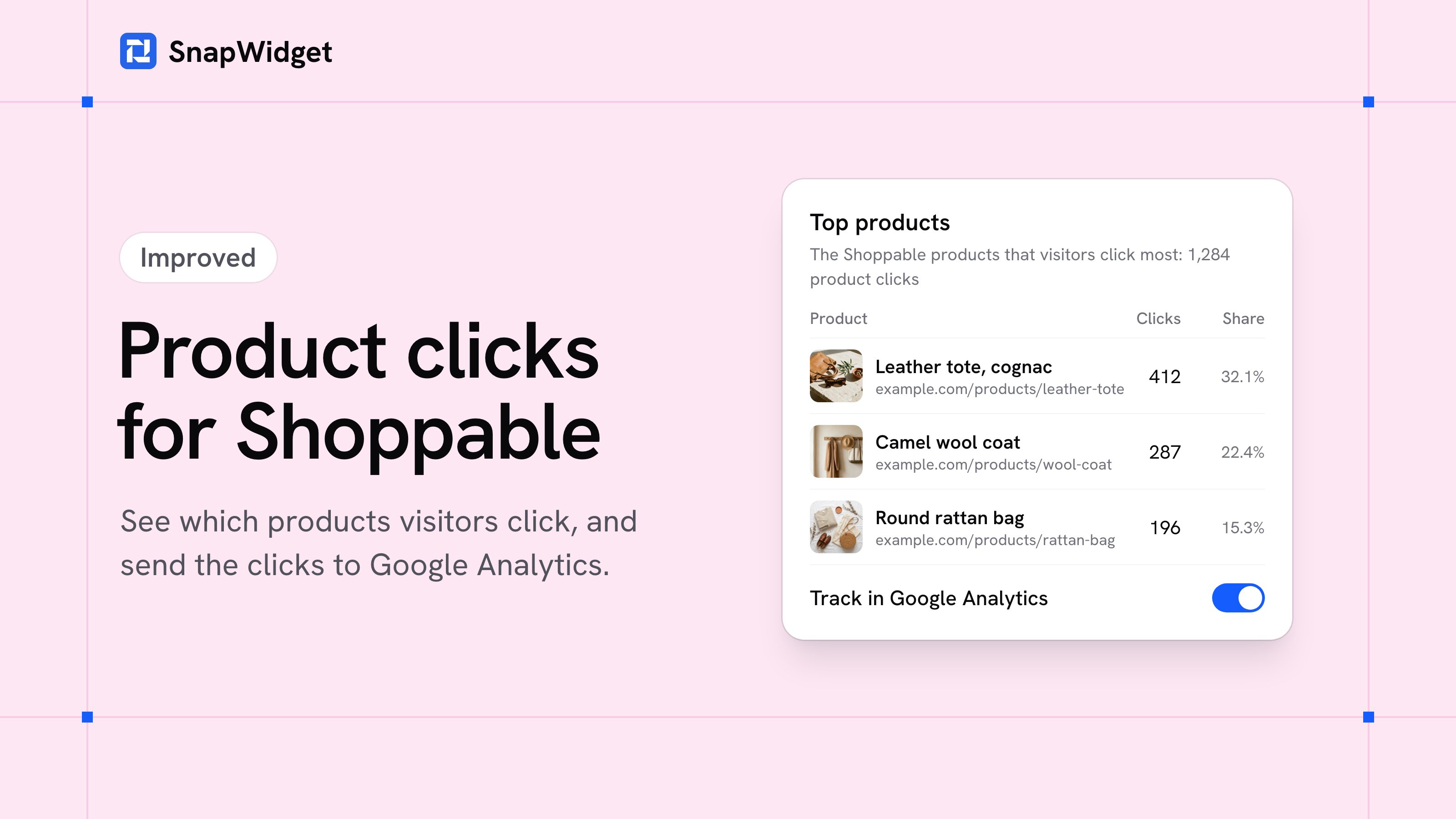
You can now see which products your visitors click in your Shoppable widgets. SnapWidget counts each product click, and you can also send the clicks to the Google Analytics of your website.
Where to see the clicks
- Shoppable page: each photo shows the product clicks of its links in the last 30 days, and each link shows its own clicks.
- Analytics: pick a Shoppable widget to see its Top products: the 10 product links with the most clicks, and the share of each.
A click counts when a visitor clicks a product in the lightbox, or clicks a photo that opens its product page. New clicks show within an hour. Counting started on November 1, 2026.
Send the clicks to Google Analytics
- Open your Shoppable widget and click the Advanced tab.
- Turn on Track in Google Analytics, then click Save.
Each product click then goes to the Google Analytics of the page that shows your widget, as the event snapwidget_product_click with the product link, the product text and the post id. This works with the Google tag (gtag.js) and with Google Tag Manager. A product link to another website also gets UTM tags (utm_source=snapwidget, utm_medium=referral, utm_campaign=shoppable), so your store sees the visits that come from your widget.
The builder preview now shows your Shoppable links too, so you can check them before you save. The guide has every step: Shoppable photos.
Shoppable is on all paid plans, and every paid plan starts with a 14-day free trial. Compare the plans.