

Shoppable needs a Pro widget. Pro widgets come with the Lite, Pro and Developer plans. Every paid plan starts with a 14-day free trial. See Free and Pro widgets.
Add product links
1
Open Shoppable
Click Shoppable in the sidebar of your dashboard.
2
Select your widget
Select the widget in Widget. Only Pro widgets show in this list. If you have none, the list shows “No Pro widgets found! Create a Pro widget to setup Shoppable”.
3
Click a product in a photo
Click the spot on the photo where the product is. The Add Shoppable Link window opens.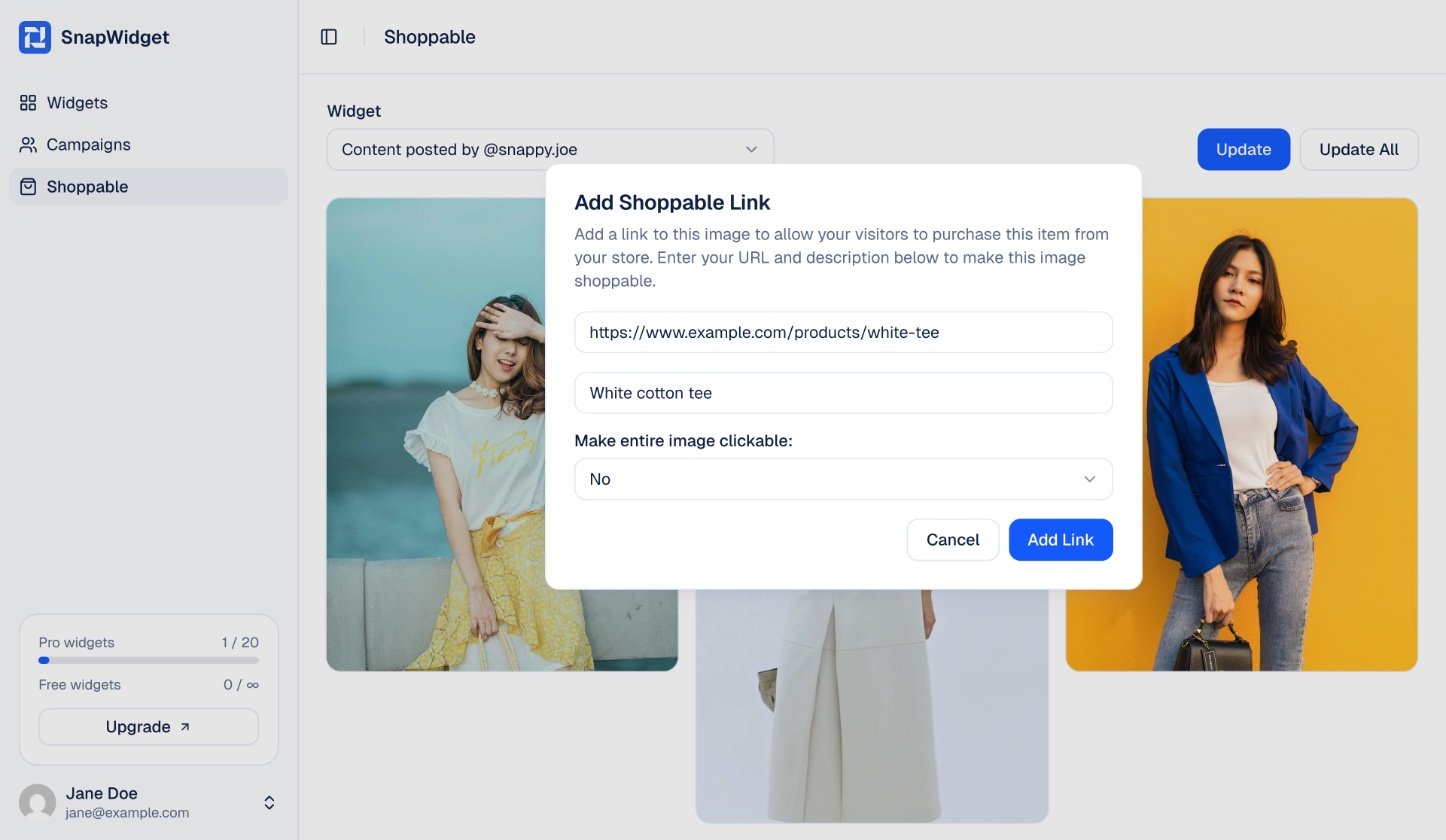
4
Add the link
Enter the link to your product page and a Description. In Make entire image clickable:, select No or Yes: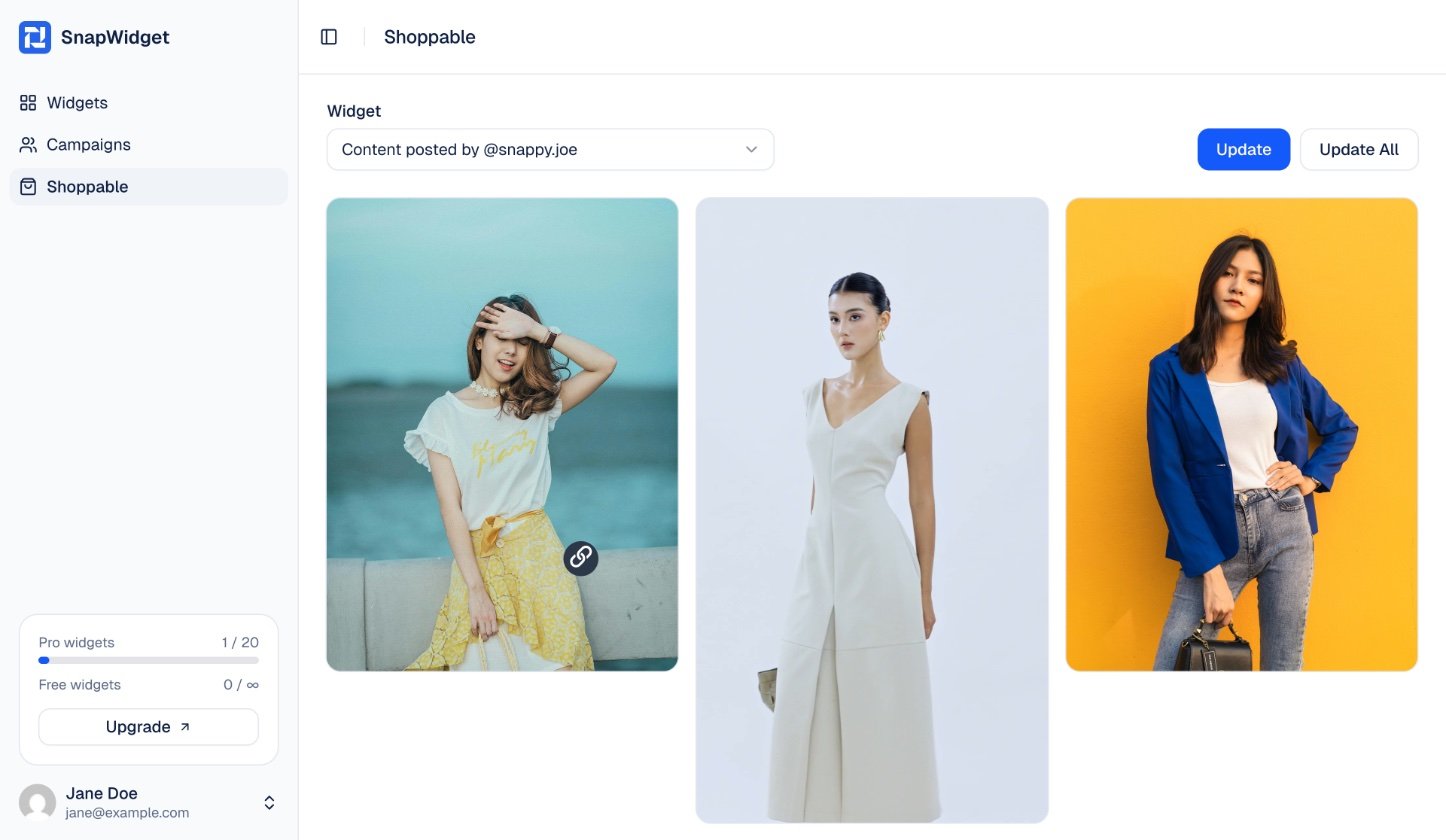
- No: a click on the photo opens the Shoppable lightbox with all product links of the photo.
- Yes: the whole photo links to the product page.
Turn on Shoppable in your widget
The links only show on your website when the widget uses the Shoppable lightbox.1
Open your widget
On your dashboard, click the widget.
2
Set Photo Link
On the Advanced tab, set Photo Link to Shoppable (Lightbox). In Shoppable Hover Text, you can change the text that shows when a visitor moves the mouse over a photo with links. The default is Shop This.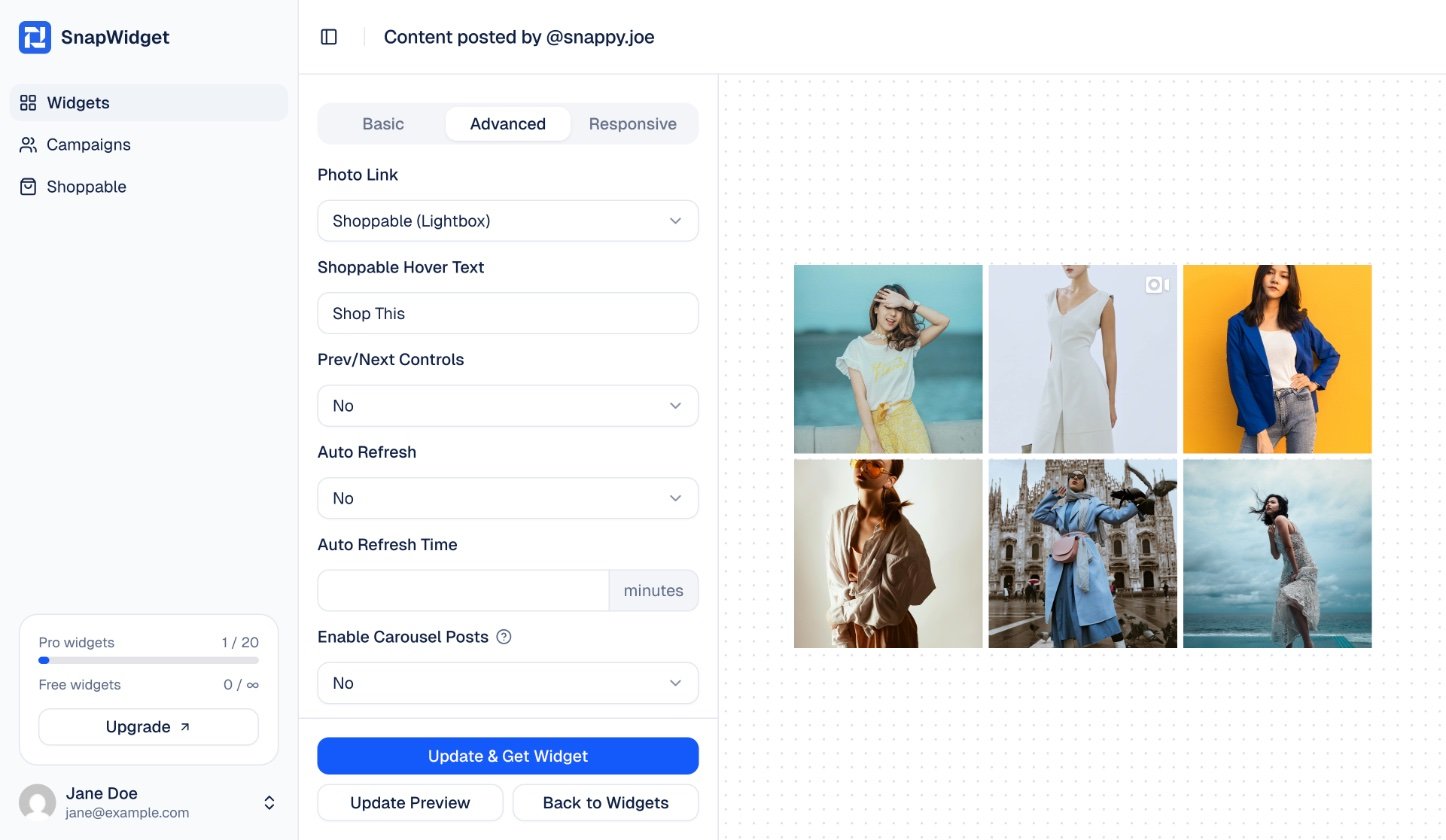
3
Update the code on your website
Click Update & Get Widget, then Copy To Clipboard. Replace the old code on your website with the new code. The Shoppable lightbox needs the new code.