

X widgets need a paid plan. Hashtag widgets come with the Pro and Developer plans. Every paid plan starts with a 14-day free trial. See the pricing page.
1
Start a new X widget
On your dashboard, click Create a new widget and open the X (Twitter) tab. Select a layout: Grid, Board, Slideshow, Scrolling or Feed. If this is your first widget, click Choose A Service and select Twitter instead.
2
Connect your X account
Click Connect next to Username. Sign in to X in the window that opens and allow SnapWidget to read posts. The widget uses your account to search X, so you need an X account even to show posts from other people.
3
Set the hashtag
In Filter, select Hashtag Only. Type the hashtag in Hashtag without the 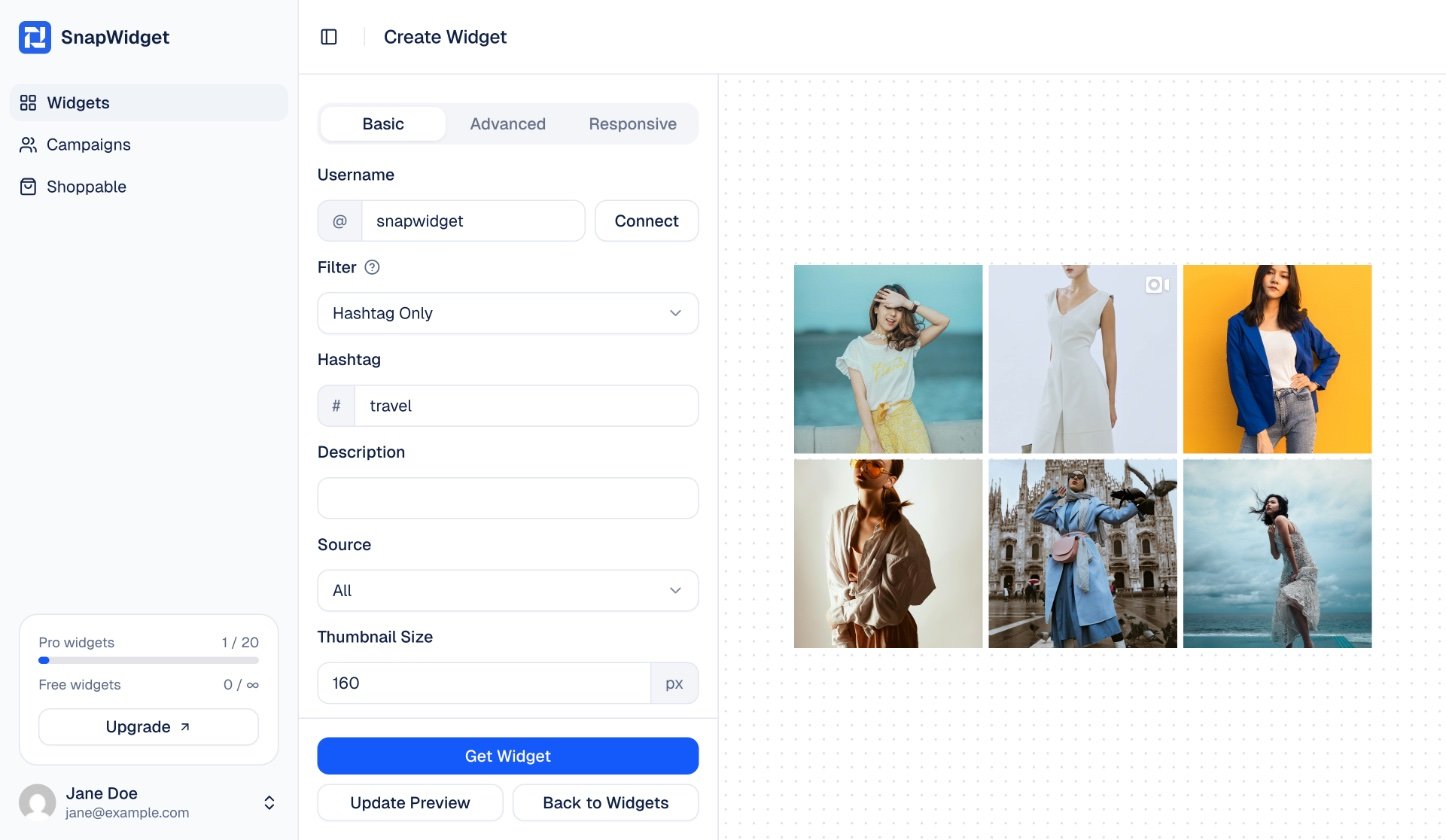
# sign. Click Update Preview to see the posts.4
Get your code
Change the other settings on the Basic tab. Then click Get Widget. In the You’re One Step Away window, click Copy To Clipboard. Paste the code into your website.