

- Album: an album on your own Facebook profile.
- Page: the photos of a Facebook page that you manage. See Facebook page photos.
- Page Album: one album on a Facebook page. See Facebook page album.
1
Start a new widget
If this is your first widget, click Choose A Service on your dashboard. Select Facebook, then select a layout. Then click Use the free widget, or click Start Free Trial to use the Pro settings.If you already have widgets, click Create a new widget. Open the Facebook tab and select a widget.
2
Connect your Facebook account
In the widget builder, click Connect next to Username. A Facebook window opens. Log in and allow SnapWidget to read your photos and pages.If you want photos from a page, select that page when Facebook asks which pages SnapWidget can use.
3
Choose where the photos come from
In Source, select Album, Page or Page Album.For Album, select the album in the Album list. If you leave Album empty, the widget shows photos that you are tagged in.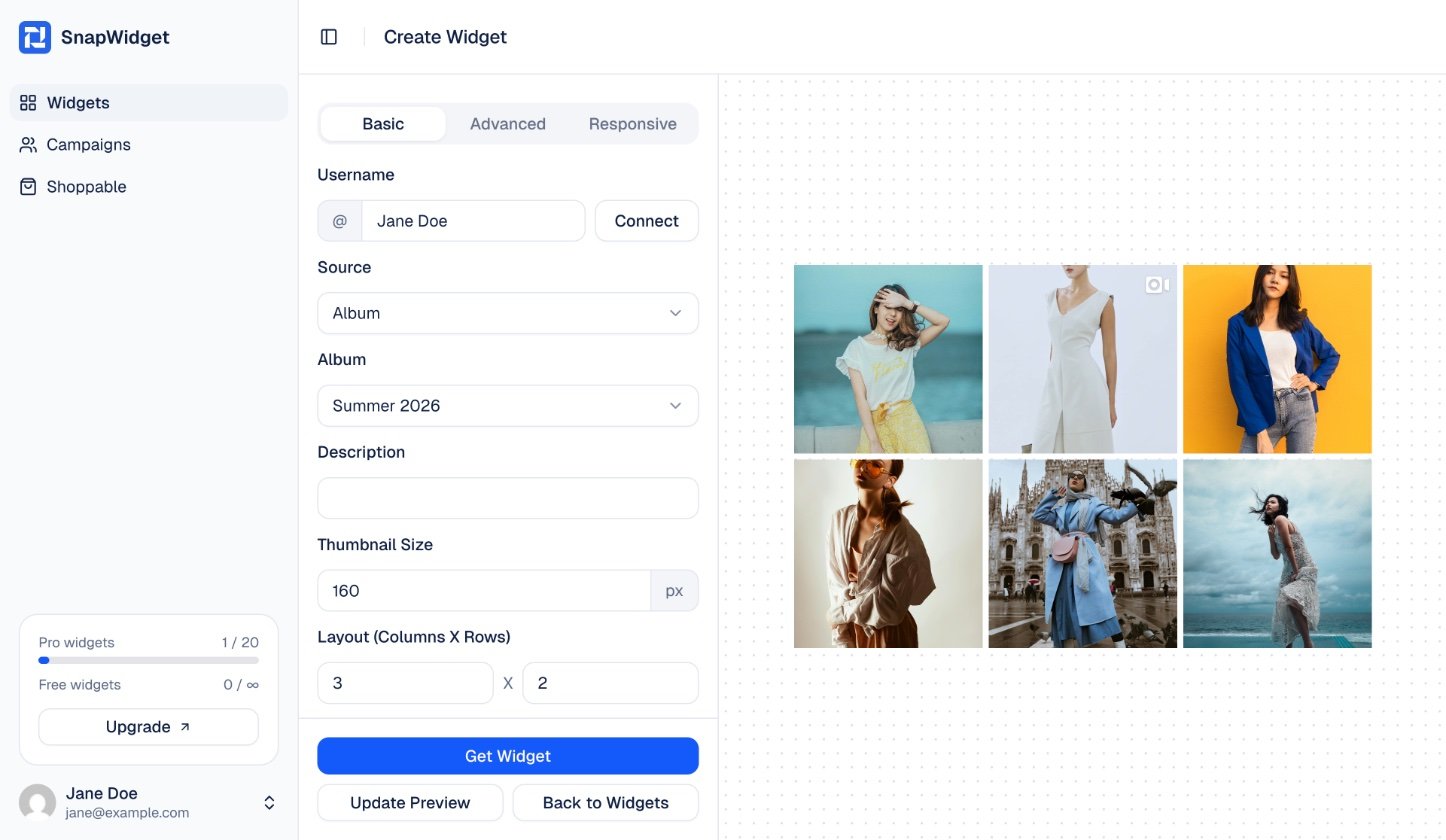
4
Set up your widget
Change the settings on the Basic tab, for example Thumbnail Size, Layout (Columns X Rows) and Hover Effect. Click Update Preview to see your changes.
5
Get your code
Click Get Widget. In the You’re One Step Away window, click Copy To Clipboard. Then paste the code into your website. See the guide for your website builder.