

1
Find the album ID
Open the album on Facebook in your browser. The album ID is the long number in the address bar. In many album links, it comes after
set=a.. For example, in ...?set=a.102433051113377&type=3 the album ID is 102433051113377.2
Start a new Facebook widget
On your dashboard, click Create a new widget and open the Facebook tab. Select Grid, Board, Slideshow or Scrolling. If this is your first widget, click Choose A Service and select Facebook instead.
3
Connect your Facebook account
Click Connect next to Username. Log in with the Facebook account that manages the page, and select the page when Facebook asks which pages SnapWidget can use.
4
Enter the album ID
Set Source to Page Album. In Page Album Id, enter only the number. Do not enter 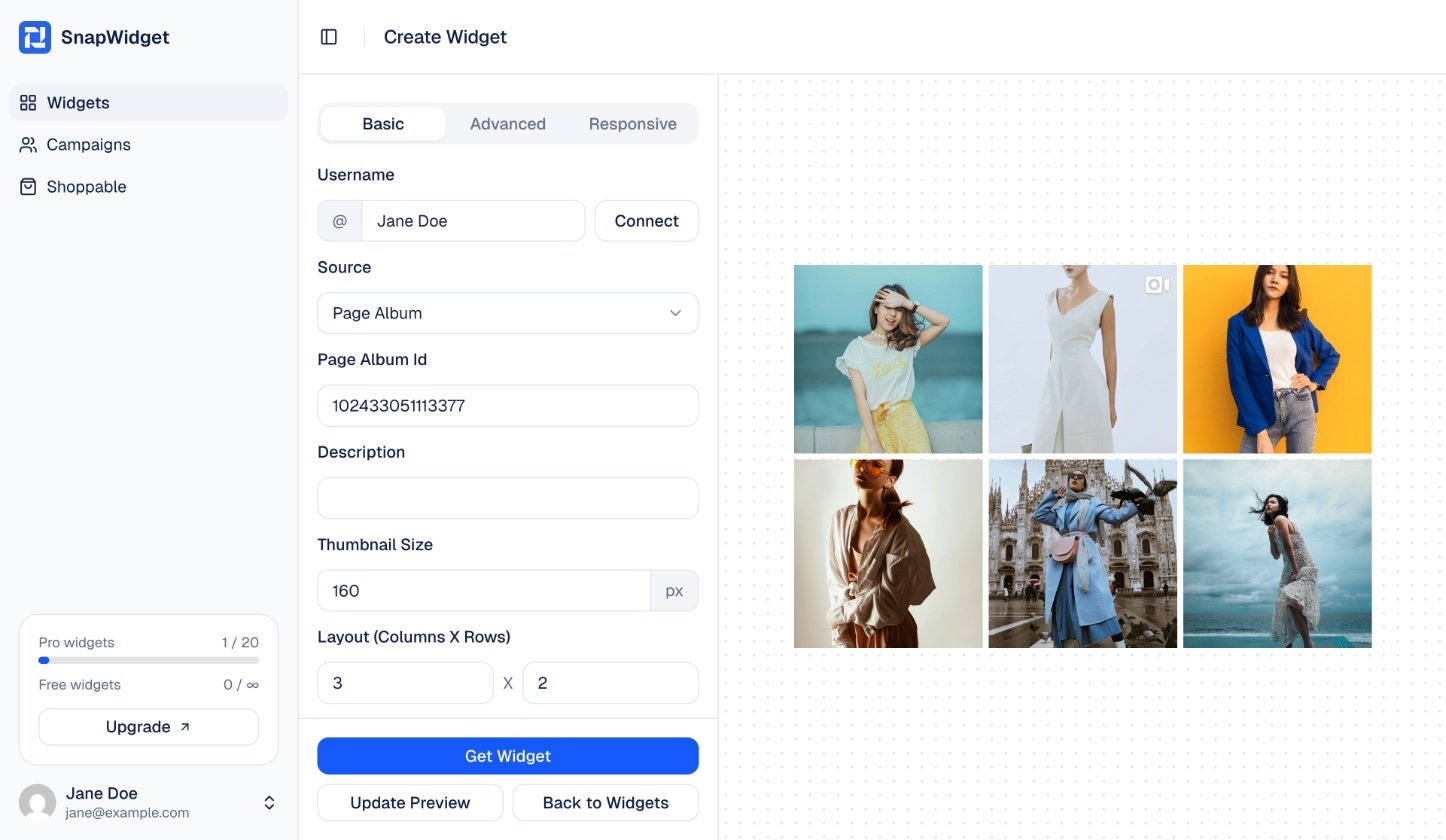
a. or the full link. Click Update Preview to see the photos.5
Get your code
Change the other settings on the Basic tab. Then click Get Widget. In the You’re One Step Away window, click Copy To Clipboard. Paste the code into your website.