

What you need
- A paid plan (Lite, Pro or Developer). Every paid plan starts with a 14-day free trial.
- A Pro Instagram widget.
- The other person needs a creator or business Instagram account. They do not need a SnapWidget account.
Send the widget for authorization
1
2
Get the link
On the Basic tab, click the send icon next to Username. Its tooltip says Send this widget to be authorized. The Send widget for authorization window opens with a link.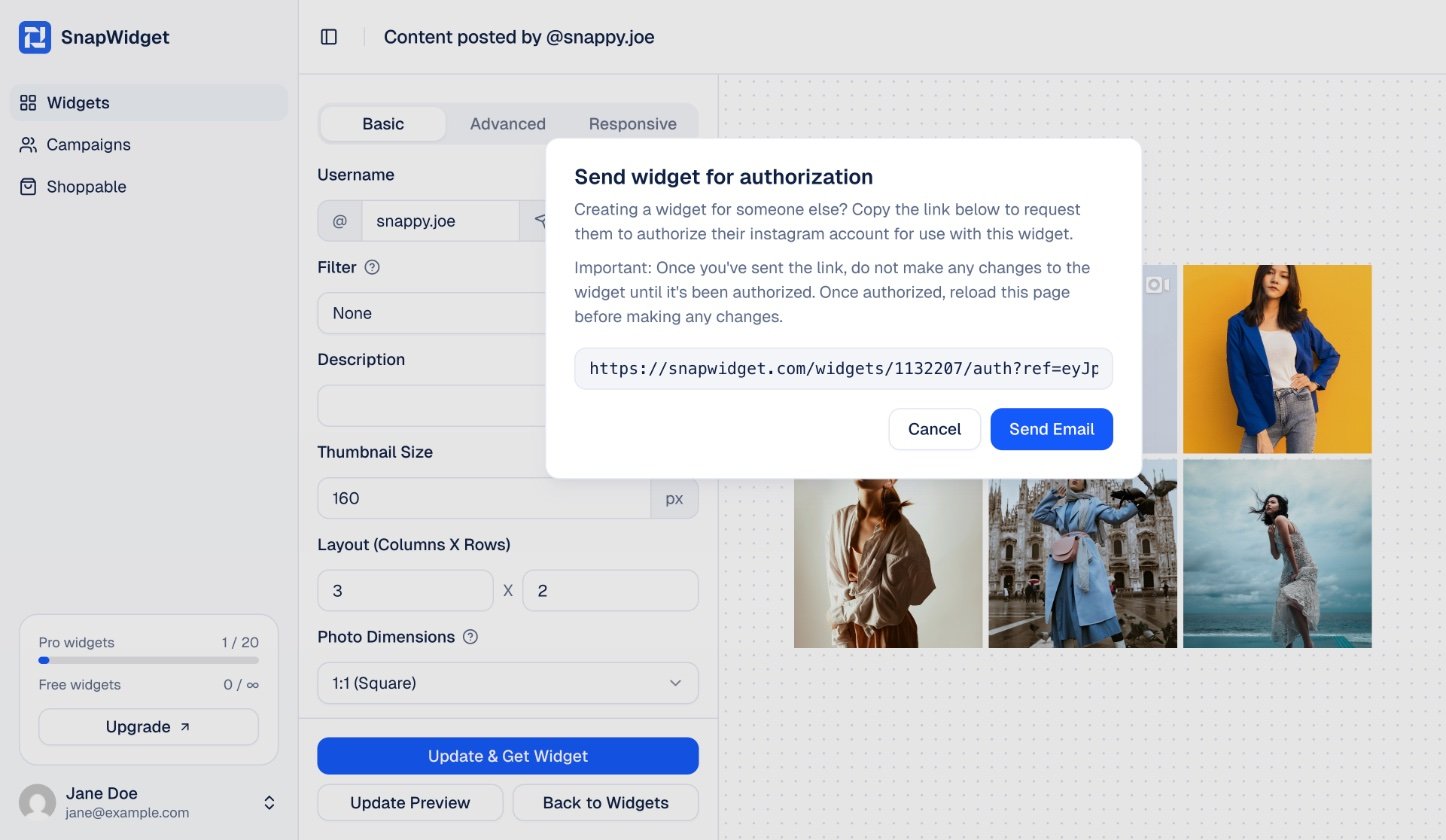
3
Send the link
Copy the link and send it to the other person. Or click Send Email. Your email app opens a new email, and you paste the link into it.
4
The other person signs in
The other person opens the link and signs in with their Instagram account. When they allow access, they see Success! and The widget has been successfully authorized for your Instagram account.
5
Finish the widget
Reload the widget page. Username now shows their Instagram account. Set up the widget, click Update & Get Widget, and copy the code to their website.