

YouTube widgets need a paid plan: Lite, Pro or Developer. Every paid plan starts with a 14-day free trial. See the pricing page.
1
Start a new YouTube widget
On your dashboard, click Create a new widget. If this is your first widget, click Skip This instead. Open the Youtube tab. Select Grid or Board. Board also shows the channel name and the title of each video.
2
Add the link to your channel
In Channel Link, paste the link to your channel in this form: 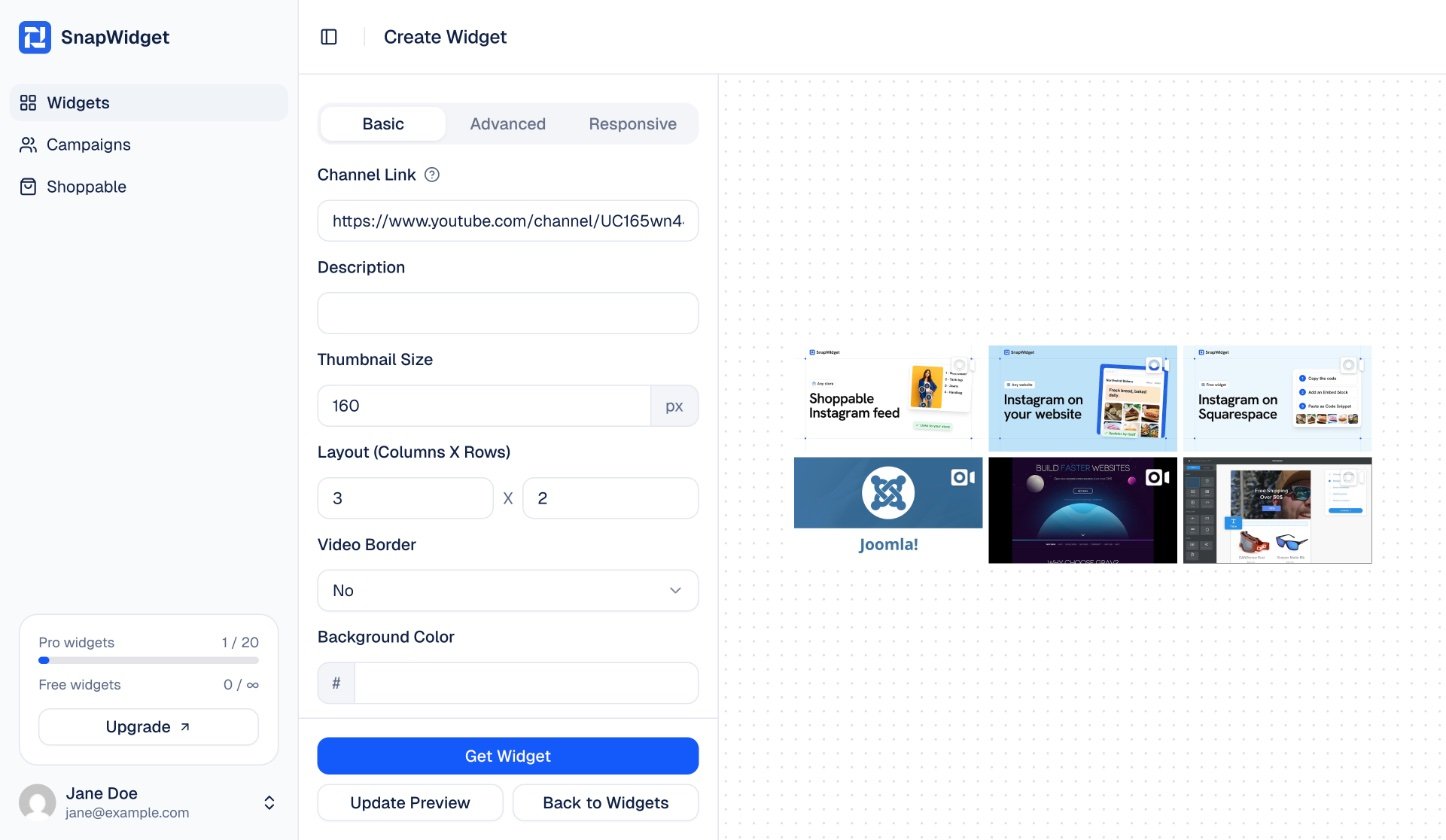
https://www.youtube.com/channel/ followed by your channel ID.https://www.youtube.com/user/yourname also work.3
Set up your widget
On the Basic tab, change settings such as Thumbnail Size, Layout (Columns X Rows), Video Border, Video Padding and Hover Effect. Click Update Preview to see your changes.
4
Choose what happens on a click
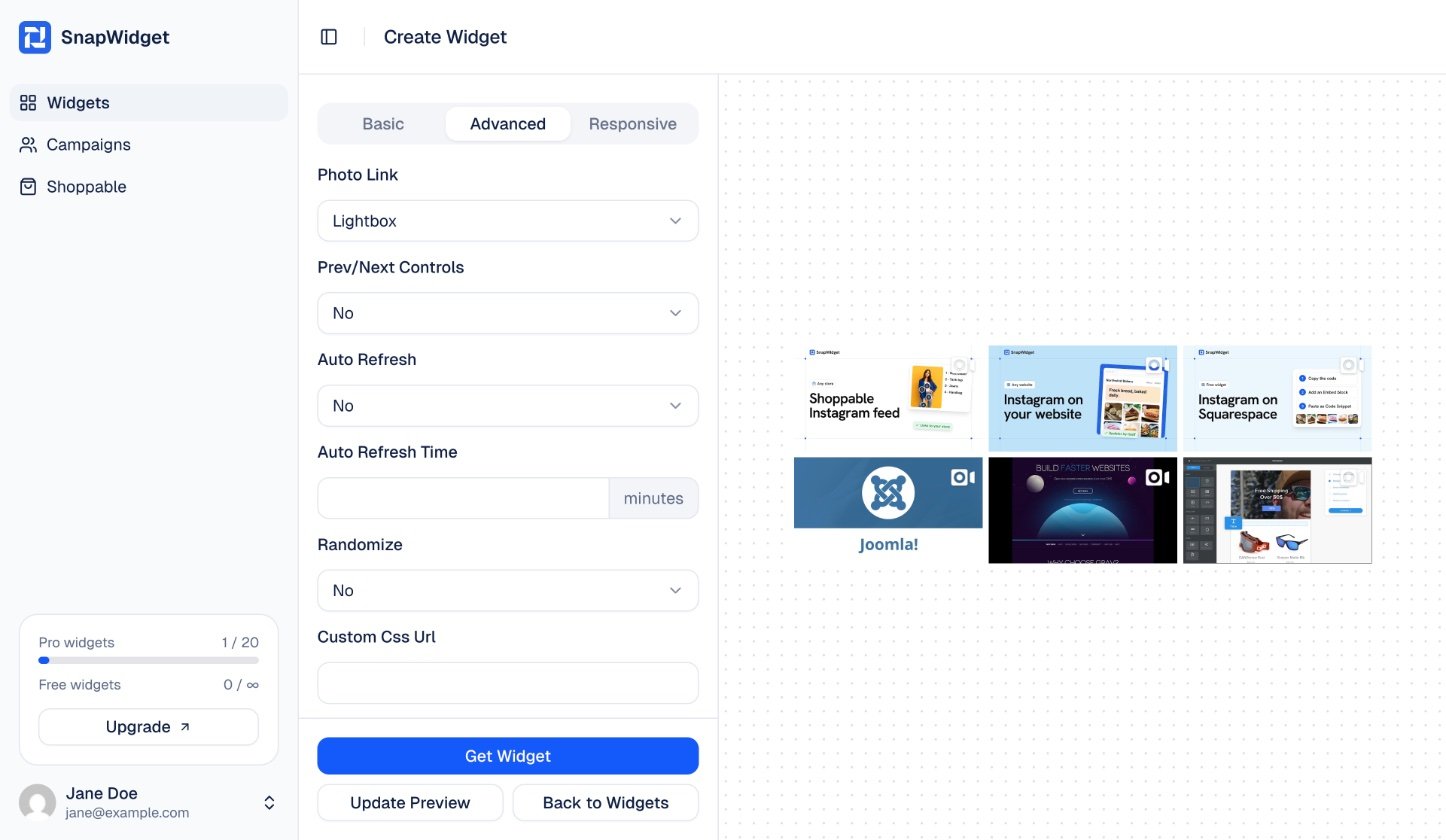
On the Advanced tab, set Photo Link:
- YouTube: opens the video on YouTube.
- Lightbox: plays the video in a lightbox on your page, so visitors stay on your site.
- Other: opens a link that you choose.
-
None: nothing happens.
5
Get your code
Click Get Widget. In the You’re One Step Away window, click Copy To Clipboard. Paste the code into your website. See the guide for your website builder.