

Switch to a creator account
1
Go to your profile
Open the Instagram app and tap your profile picture in the bottom right.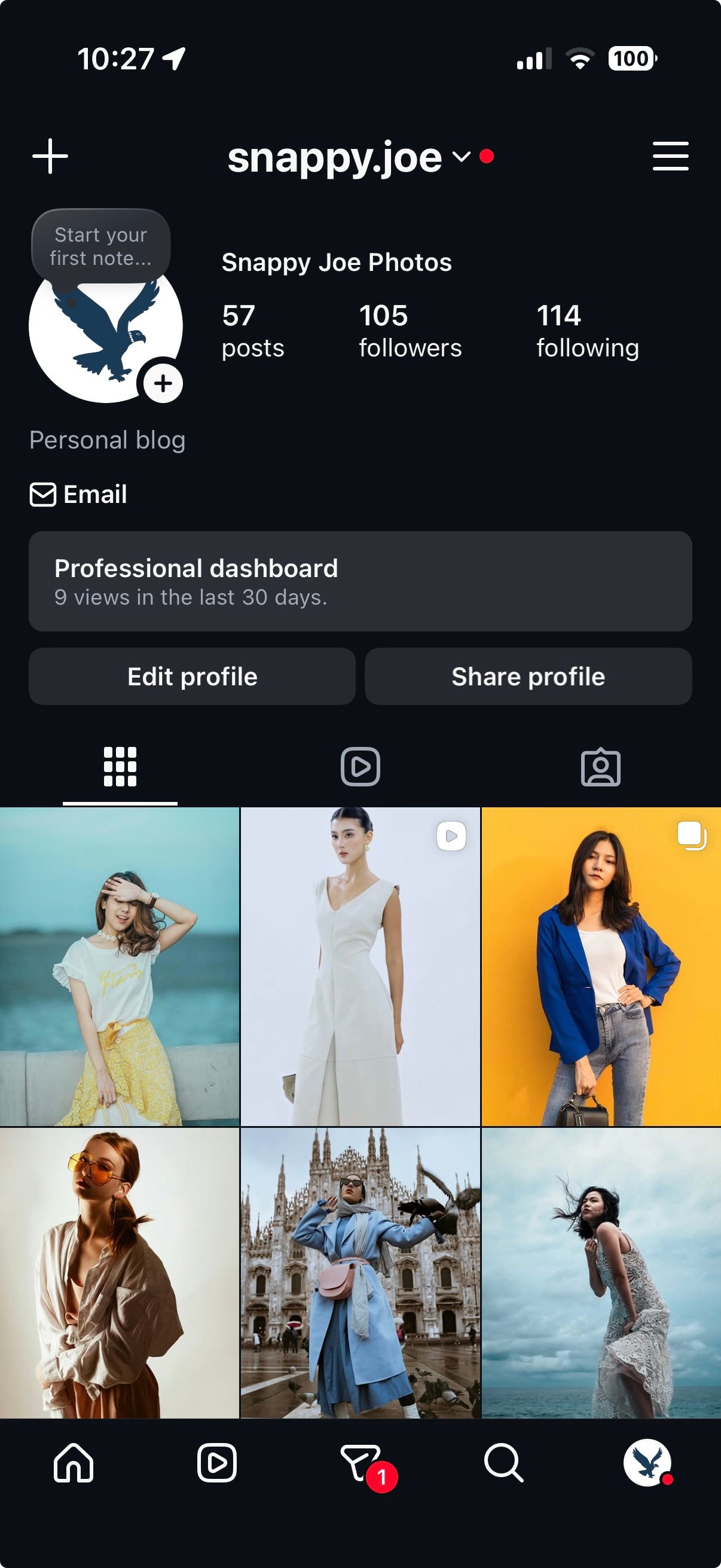
2
Open Settings and activity
Tap the menu icon (☰) in the top right. This opens Settings and activity.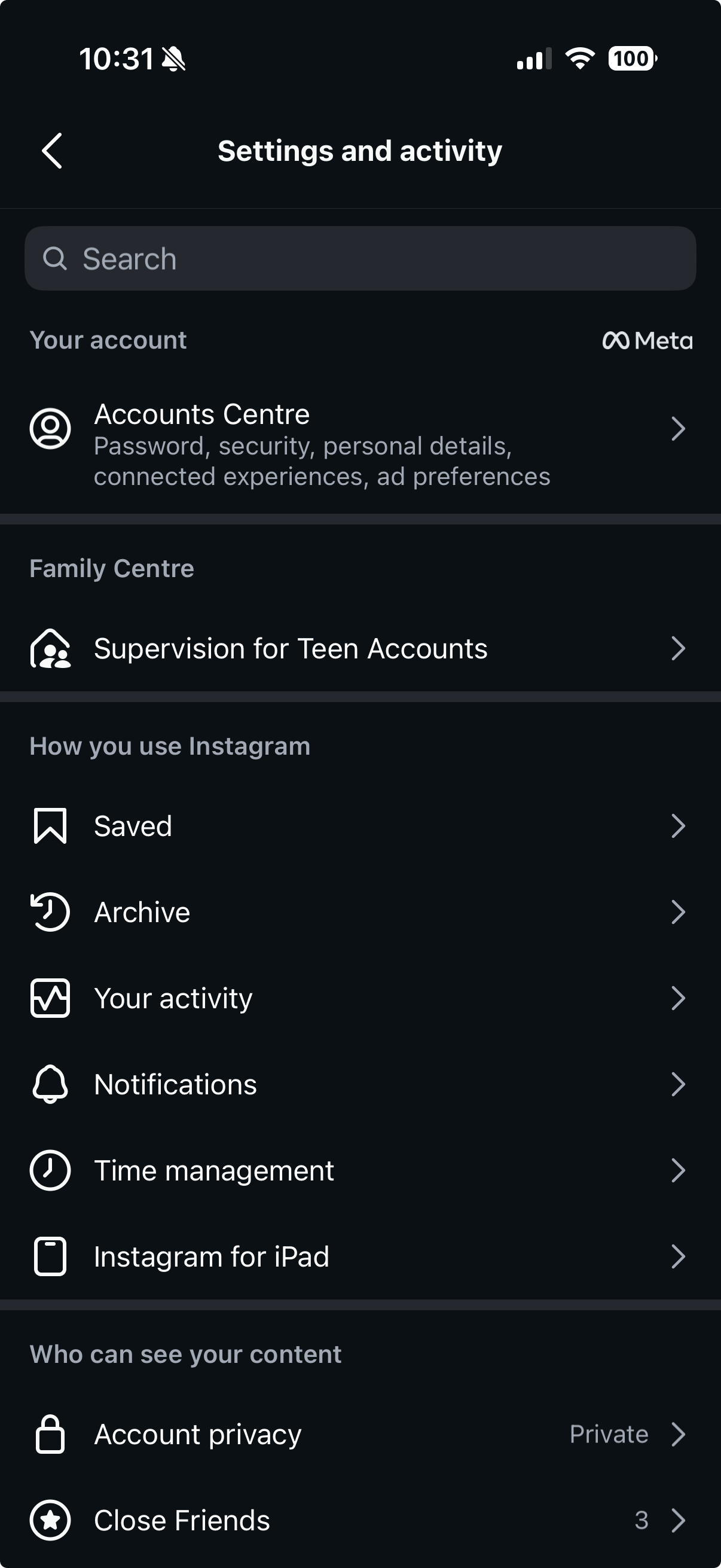
3
Tap Account type and tools
Scroll down and tap Account type and tools. If you cannot find it, type “account type” in the search box at the top.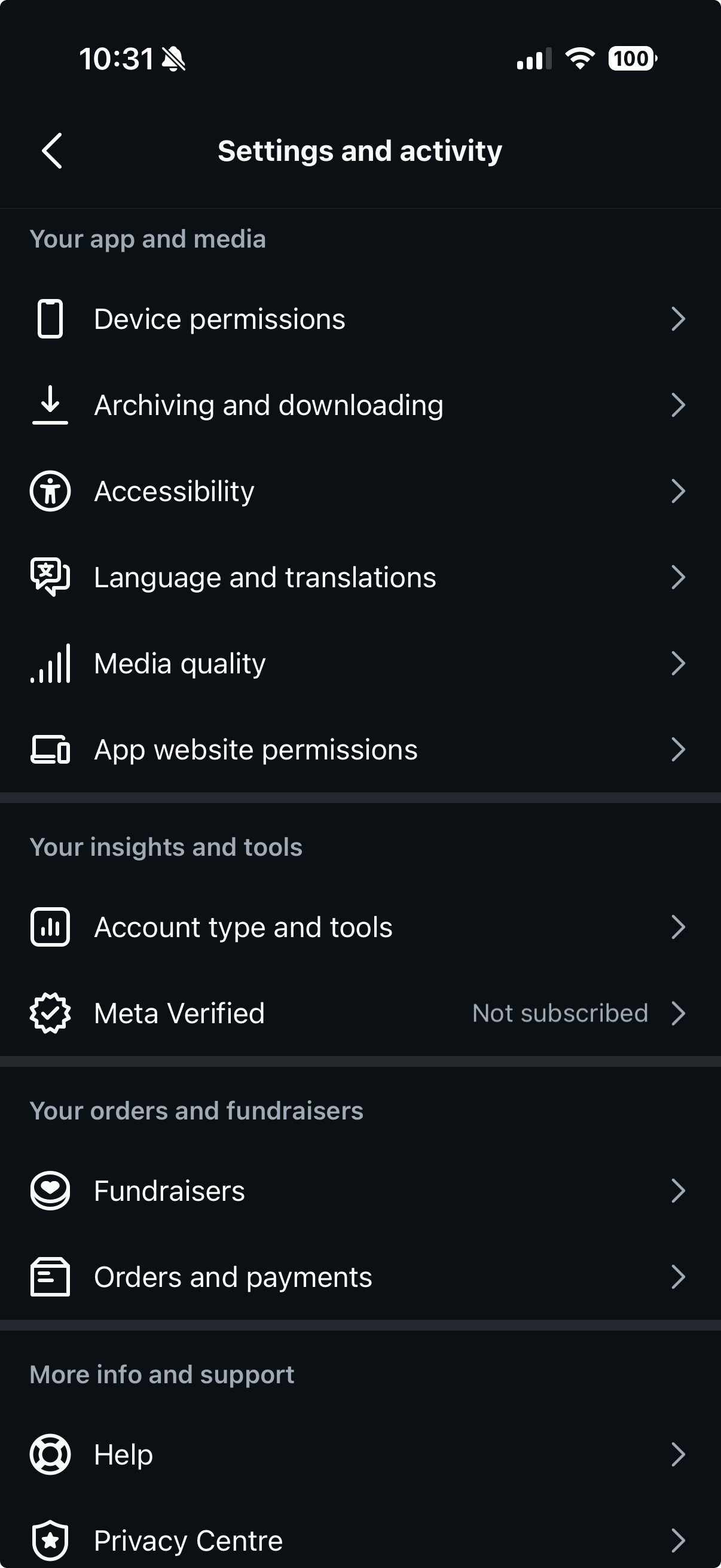
4
Tap Switch to professional account
Tap Switch to professional account.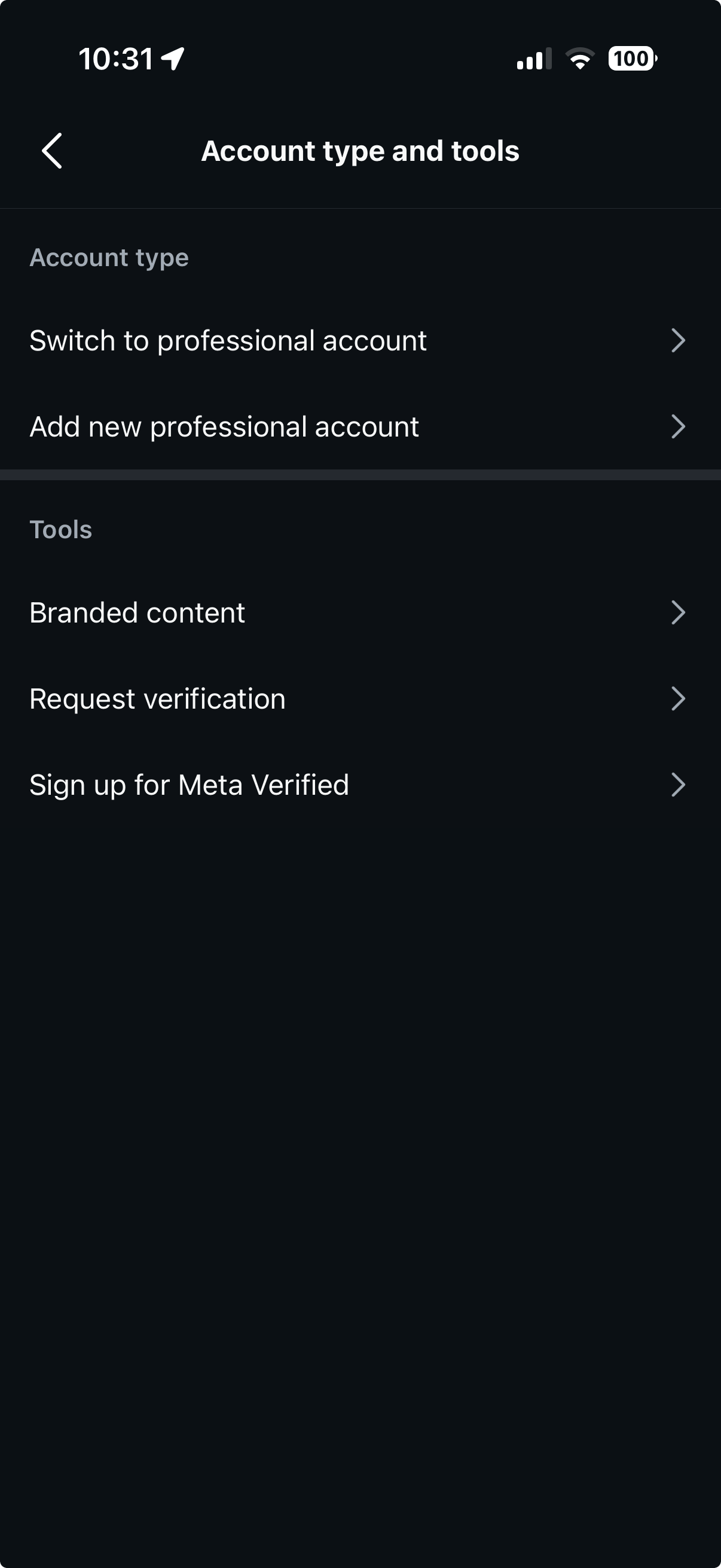
5
Choose a category
Choose the category that best describes you, for example a blogger or an artist. Then tap Switch to professional account. The category does not decide if you get a creator or a business account.
6
Choose Creator
Choose Creator, then tap Next. Complete the optional steps, or tap X in the top right to skip them.
Connect your widget again
If your widget stopped updating, connect it again after you switch:- Log in to SnapWidget and click your widget on your dashboard.
- Click Reconnect next to Username, then click Sign In With Instagram.
- Click Update & Get Widget.
Creator or business account?
Both work with SnapWidget.- Creator is best for public figures, artists, content producers and influencers.
- Business is best for shops, brands, local businesses and organizations. See Convert to a business account.
What else you get
- A professional dashboard with insights about your posts and followers.
- A message inbox with Primary, General and Requests folders.
- An optional category label and contact details on your profile.
Switch back to a personal account
- On your profile, tap the menu icon (☰).
- Tap Account type and tools, then tap Account type.
- Tap Switch account type, choose a personal account, and tap Switch.
SnapWidget cannot read posts from a personal account. If you switch back, your widget stops updating.