

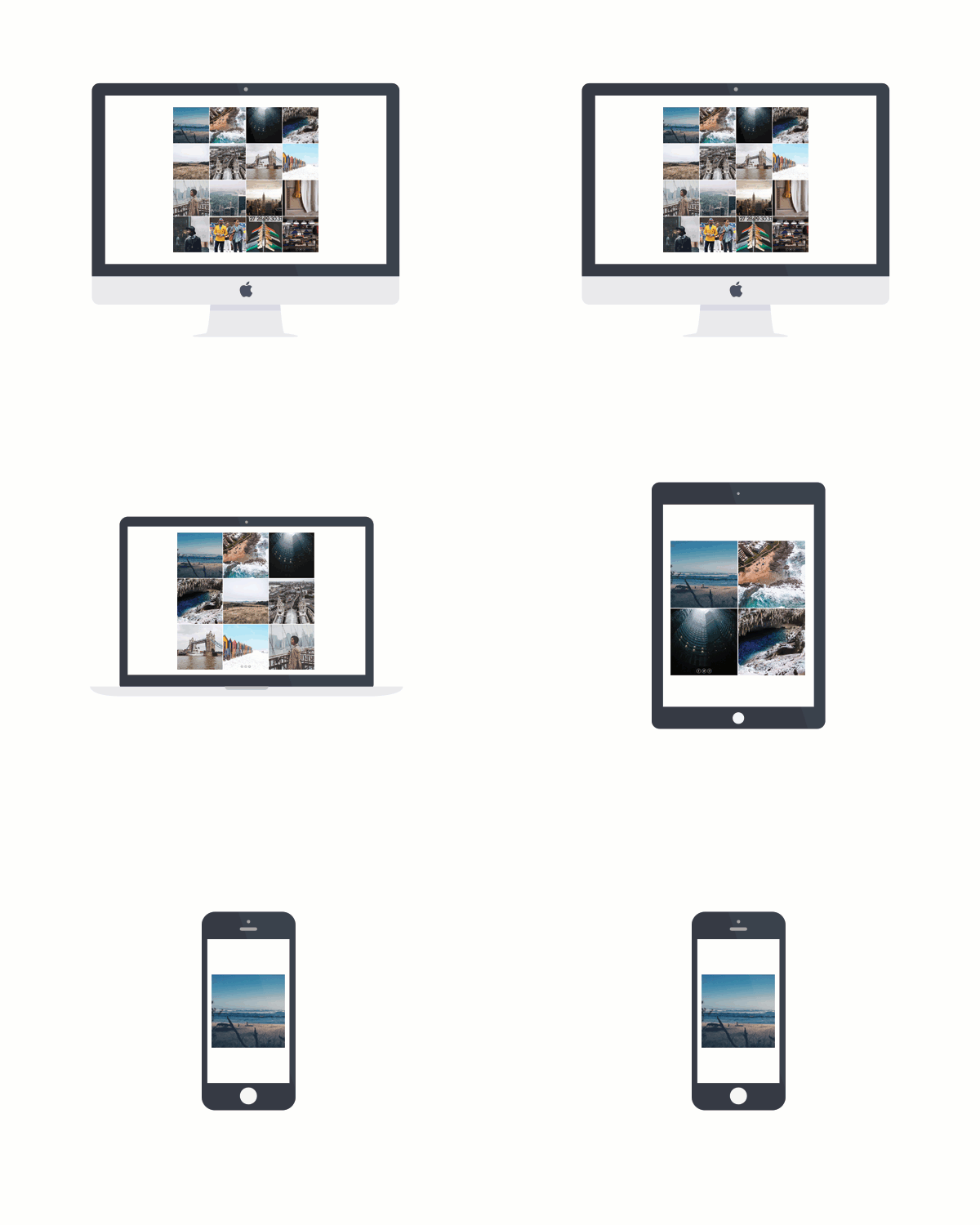
The Responsive tab is on Pro Grid, Board, Slideshow and Scrolling widgets. Pro widgets come with the Lite, Pro and Developer plans. Every paid plan starts with a 14-day free trial. See Free and Pro widgets.
1
Open your widget
On your dashboard, click the widget. Or create a new Pro widget.
2
Turn on Responsive
On the Basic tab, set Responsive to Yes. The display sizes only work when Responsive is Yes.
3
Add a layout for a display size
Open the Responsive tab. In Display Size, select a size. Then set the layout for that size:
- Grid and Board: Layout, in columns X rows.
- Slideshow: Thumbnail Size.
- Scrolling: Thumbnail Size. Instagram widgets also have Columns.
4
Update the code on your website
Click Update & Get Widget (or Get Widget for a new widget), then Copy To Clipboard. Replace the old code on your website with the new code.
Display sizes
The widget picks the layout from the width of the visitor’s browser window:
For a size that has no option, the widget uses the layout from the Basic tab.