

[instagram-feed], with your widget. The same steps work for Facebook, X, TikTok and YouTube widgets.
Google Tag Manager is available from the Mijnwebwinkel PRO plan. Mijnwebwinkel support does not help with custom tags.
In SnapWidget
- Create your widget, or open an existing widget from your dashboard.
- Click Get Widget. For an existing widget, click Update & Get Widget.
- In the You’re One Step Away window, click Copy To Clipboard.
Connect Google Tag Manager to your webshop
- Go to Google Tag Manager and sign in with your Google account. Create an account and a container. For the target platform, choose Web. You do not have to add the code that Google shows. Mijnwebwinkel adds it for you.
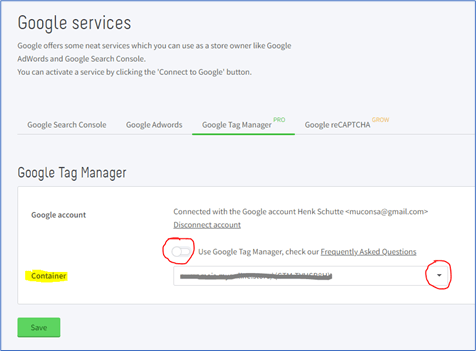
- In your Mijnwebwinkel admin, go to Marketing > Google services and open the Google Tag Manager tab.
- Click Connect with Google and choose your Google account.
-
Turn on Use Google Tag Manager, select your container and click Save.
Create the tag in Google Tag Manager
- In Google Tag Manager, open the container that you connected to your webshop. Click Tags, then New.
-
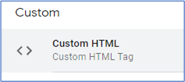
Type a name for the tag, for example “SnapWidget”. Click Tag Configuration and choose Custom HTML.
-
Paste this code into the HTML field:
-
In the SnapWidget code that you copied, find the line that starts with
<iframeand ends with</iframe>. Copy only that line. In the HTML field, replacePASTE-YOUR-IFRAME-HEREwith it. Keep the single quotes around it. The iframe code must stay on one line and must not contain a single quote ('). -
If your widget uses Lightbox or Shoppable (Lightbox) as Photo Link, your SnapWidget code has two more lines: one with
snapwidget-lightbox.cssand one withsnapwidget-lightbox.js. Copy both lines and paste them at the top of the HTML field. -
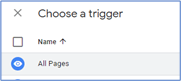
Click Save. Google Tag Manager tells you that the tag has no trigger. Click Add Trigger and choose All Pages.
- Click Save. Then click Submit and Publish.
Place the widget on your webshop page
- In your Mijnwebwinkel admin, go to Content > Pages and open the page where you want the widget.
- In the text of the page, type
[instagram-feed]on a line of its own. Do not make the text bold. Press Enter to end the line, not Shift+Enter. - Click Save.
[instagram-grid]. Use that text in the if line of the tag and on your page.
Check your widget
Open the page on your webshop. The widget shows in place of[instagram-feed]. If you still see the old page, open it in a private browser window or clear your browser cache.