

In SnapWidget
- Create your widget, or open an existing widget from your dashboard.
- Click Get Widget. For an existing widget, click Update & Get Widget.
- In the You’re One Step Away window, click Copy To Clipboard.
In Nicepage
- Open your site in Nicepage and go to the page where you want the widget.
-
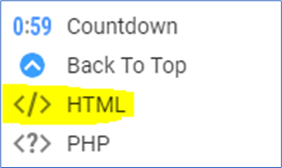
Open the Add Elements menu and add the HTML element to a block.
-
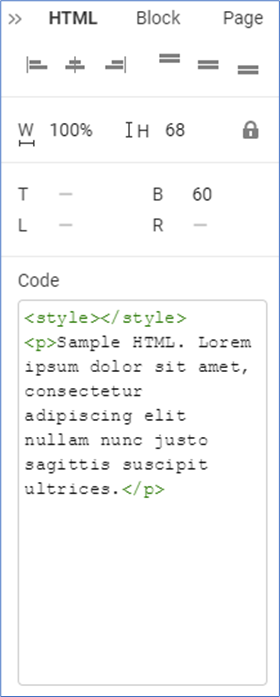
Select the element. In the Property Panel on the right, paste your code in the Code field.
- Drag the handles of the element to set its width and height.
- Click Preview to see the widget. The editor itself does not show it.
- Publish your site.