

In SnapWidget
- Create your widget, or open an existing widget from your dashboard.
- Click Get Widget. For an existing widget, click Update & Get Widget.
- In the You’re One Step Away window, click Copy To Clipboard.
In SITE123
- Log in to SITE123 and click Edit on your website.
- Click Pages, then click Edit next to the page where you want the widget.
- Open the text where the widget should go. On an Articles page, click Add New Article.
-
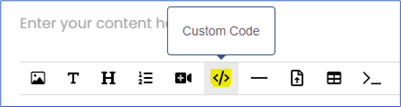
In the toolbar of the content editor, click Custom Code (</>).
-
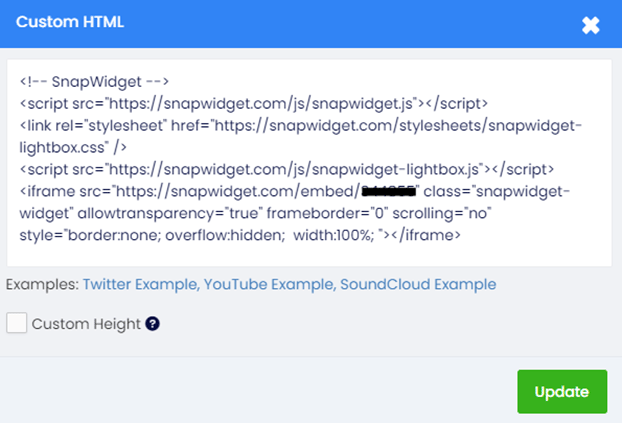
Hover over the Custom HTML box and click Change. Replace the sample code with your code and click Update.
- Click Save, then publish your website.