You need the Administrator or Editor role. On a multisite network, only a Super Admin can add the code. For other roles, ClassicPress removes the code when you save.
In SnapWidget
- Create your widget, or open an existing widget from your dashboard.
- Click Get Widget. For an existing widget, click Update & Get Widget.
- In the You’re One Step Away window, click Copy To Clipboard.
In ClassicPress
-
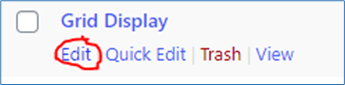
In your dashboard, click Pages. Hover over the page and click Edit. For a post, click Posts instead.
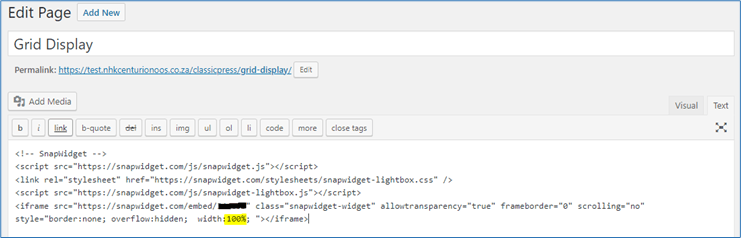
- Click the Text tab above the editor.
-
Paste your code where you want the widget to show.
-
Click Update. For a new page, click Publish.