In SnapWidget
- Create your widget, or open an existing widget from your dashboard.
- Click Get Widget. For an existing widget, click Update & Get Widget.
- In the You’re One Step Away window, click Copy To Clipboard.
In Serendipity
-
In the Serendipity admin, click New Entry. To change an entry that you made before, click Edit Entries and open the entry.
-
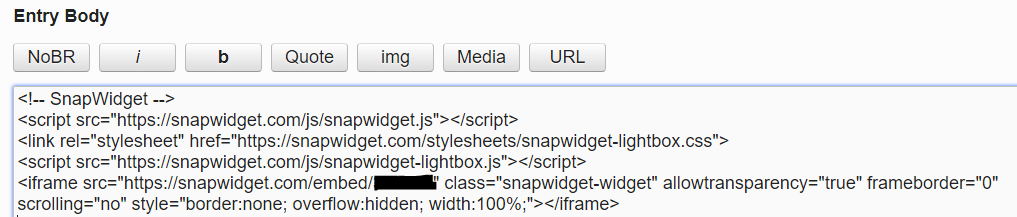
Paste your code into Entry Body. If you use the WYSIWYG editor, click Source first.
-
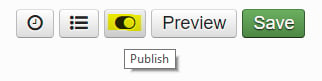
Make sure the entry is set to Publish, not Draft. Then click Save.
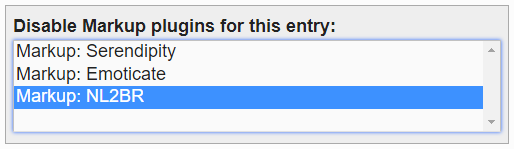
The NL2BR markup plugin adds line breaks around the code, which can add empty space above the widget. To turn it off for this entry, select Markup: NL2BR under Disable Markup plugins for this entry:. This option comes from the “Extended properties for entries” plugin.