

<iframe> and <script> tags, so use the CodeMirror editor for this article. The same steps work for Facebook, X, TikTok and YouTube widgets.
You must be a Super User, or your user group must have No Filtering in System > Global Configuration > Text Filters. For all other groups, Joomla removes the code when you save.
In SnapWidget
- Create your widget, or open an existing widget from your dashboard.
- Click Get Widget. For an existing widget, click Update & Get Widget.
- In the You’re One Step Away window, click Copy To Clipboard.
In Joomla
- In the Joomla administrator, open the user menu in the top right and click Edit Account. On the Basic Settings tab, set Editor to Editor - CodeMirror. Click Save & Close.
-
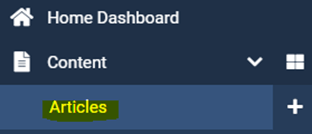
Go to Content > Articles and open the article.
- Paste your code where you want the widget to show.
- Click Save & Close.