

Tumblr does not allow JavaScript on blog pages. Before you copy the code, open the widget in SnapWidget, set Responsive to No and click Update & Get Widget. If the code still has
<script> or <link> lines, delete them and keep only the <iframe> line.In SnapWidget
- Create your widget, or open an existing widget from your dashboard.
- Click Get Widget. For an existing widget, click Update & Get Widget.
- In the You’re One Step Away window, click Copy To Clipboard.
In Tumblr
-
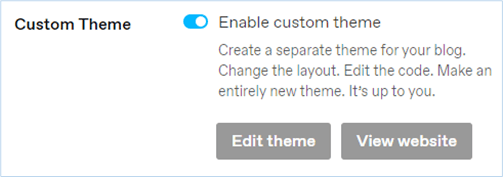
In Tumblr, open Settings and select your blog. Under Custom theme, turn on Enable custom theme. Then click Edit theme.
-
In the theme editor sidebar, click Add a page.
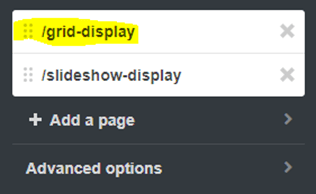
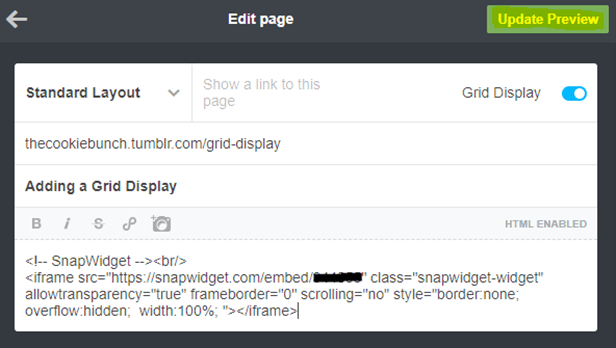
- Select Standard Layout. Enter the page URL and a Page Title, and turn on Show a link to this page.
-
Paste your code into the page body.
- Click Save.